
Workplaces
Go to WorkplacesWhat is a Workplace?
A Workplace is a shared file storage where you and your agents work in one place. Whatever an agent creates or edits in Chat can end up here, and you can open, view and change the files directly.
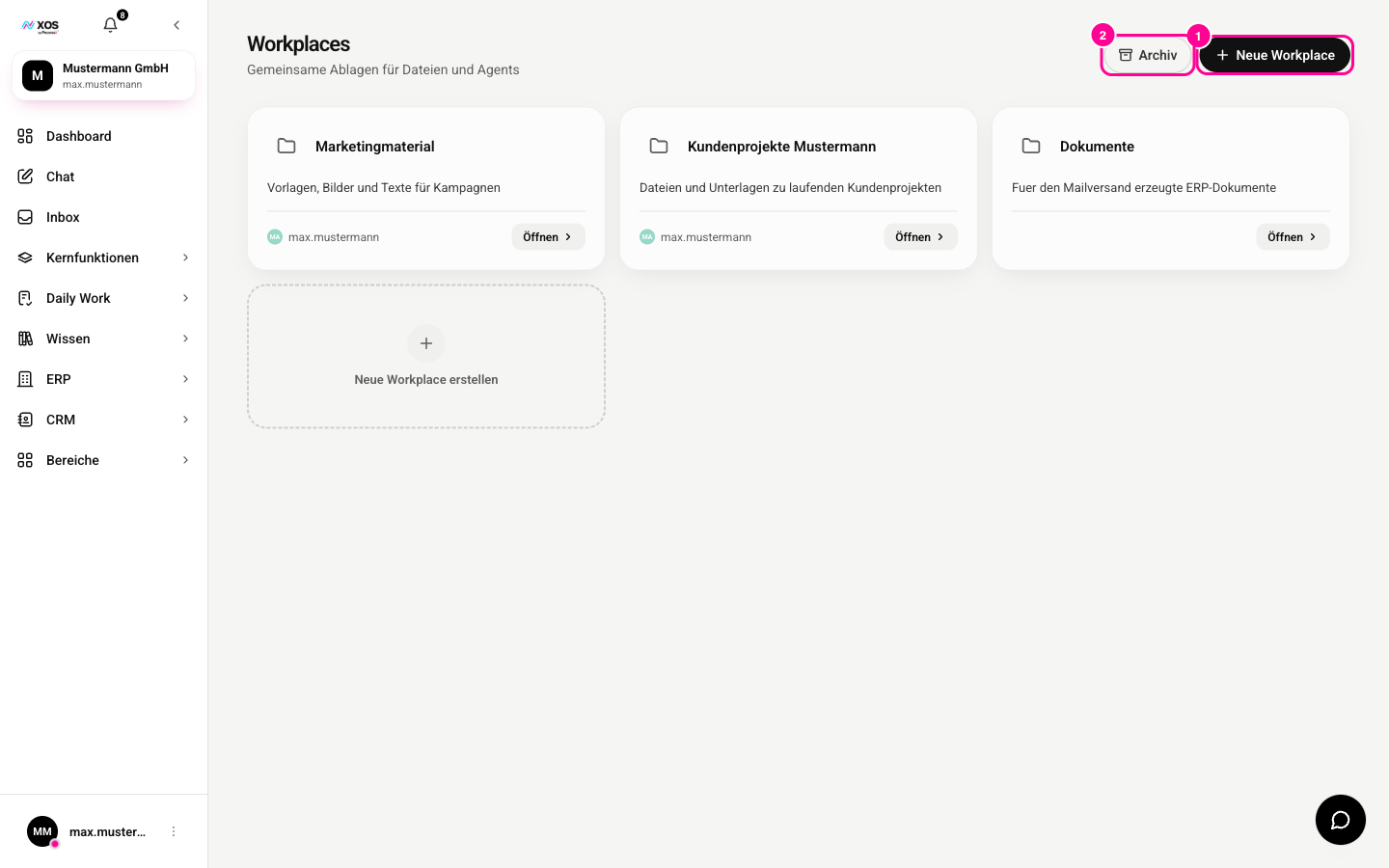
- Marker 1: New Workplace (Neue Workplace) creates a Workplace.
- Marker 2: Archive (Archiv) shows archived Workplaces.
- Each Workplace appears as a tile with its name, description and owner. Open (Öffnen) takes you inside.
- Shared with me (Geteilt mit mir) lists Workplaces others have shared with you. Pending invitations appear as a banner at the top.
How do I create a Workplace?
- Open Workplaces and click New Workplace (Neue Workplace) at the top right (marker 1). Alternatively, use the dashed tile Create new Workplace (Neue Workplace erstellen).
- Enter a Name (required). The short name is generated automatically.
- Optional: add a Description (Beschreibung).
- Click Create (Erstellen). You land directly in the Workplace.
How do I manage files?
Inside the Workplace, a toolbar at the top shows the file count and two views: List (Liste) (tree with folders) and Tiles (Kacheln). Search file... (Datei suchen...) filters the list, and the preview opens on the right.
- Click New (Neu) and choose Create new file (Neue Datei erstellen), Upload file (Datei hochladen) or New folder (Neuer Ordner). For a new file, you enter a path, e.g. src/main.py, and subfolders are created automatically.
- Click a file to view it. For text files, Edit (Bearbeiten) appears. In the editor, save with Save (Speichern) or discard with Cancel (Abbrechen).
- Rename files with the pencil icon and drag and drop them into a folder. Upload new files by dragging them into the window (Drop files here (Dateien hier ablegen)).
- The download icon downloads the entire Workplace as a ZIP.
How do I share a Workplace?
You can share a Workplace with others and decide whether they can only read or also edit.
- In the overview, hover over a tile and click the Share (Teilen) icon, or open the Workplace and click Members (Mitglieder).
- Stay on the Invite (Einladen) tab of the Share Workplace (Workplace teilen) window and find the person with Search users... (Benutzer suchen...).
- Choose Read (Lesen, Viewer) or Edit (Bearbeiten, Editor).
- Optional: write a message, then click Send invitation (Einladung senden).
The invited person sees the invitation as a banner under Workplaces and in their Inbox, and responds with Accept (Annehmen) or Decline (Ablehnen). The Members (Mitglieder) tab shows everyone with their role: Owner, Editor, Viewer or Pending (Ausstehend).
Can I link Google Drive?
Yes. A Workplace can be connected to a Google Drive folder (Google-Drive-Ordner). Files are then synced in both directions: what you change in the Workplace ends up in the Drive folder, and new or changed Drive files appear in the Workplace. XOS checks the folder regularly, and the file list refreshes about every 30 seconds.