
Agents, supervisor & specialists
Go to the Connectors pageHow do agents work together?
XOS consists of one Assistant (Assistent) (the supervisor) and several Specialists (Spezialisten) (the agents). The assistant is your point of contact in the chat and brings in the right specialist for tasks in connected tools.
The assistant handles a lot on its own:
- Workplaces: read, write and search files
- Memory (Gedächtnis): search notes and save new knowledge
- Send notifications (Benachrichtigungen) and research on the web
If a task needs a third-party tool such as GitHub, Notion or Linear, it hands over to the responsible specialist and tells you so, for example "I'm handing over to the GitHub agent." („Ich übergebe an den GitHub-Agent.“) Afterwards it briefly summarizes the result.
What does the Connectors page show?
On the Connectors page you see all connected tools with their agents as cards. Each card shows the logo, the agent name (marker 1), a description and the connection status.
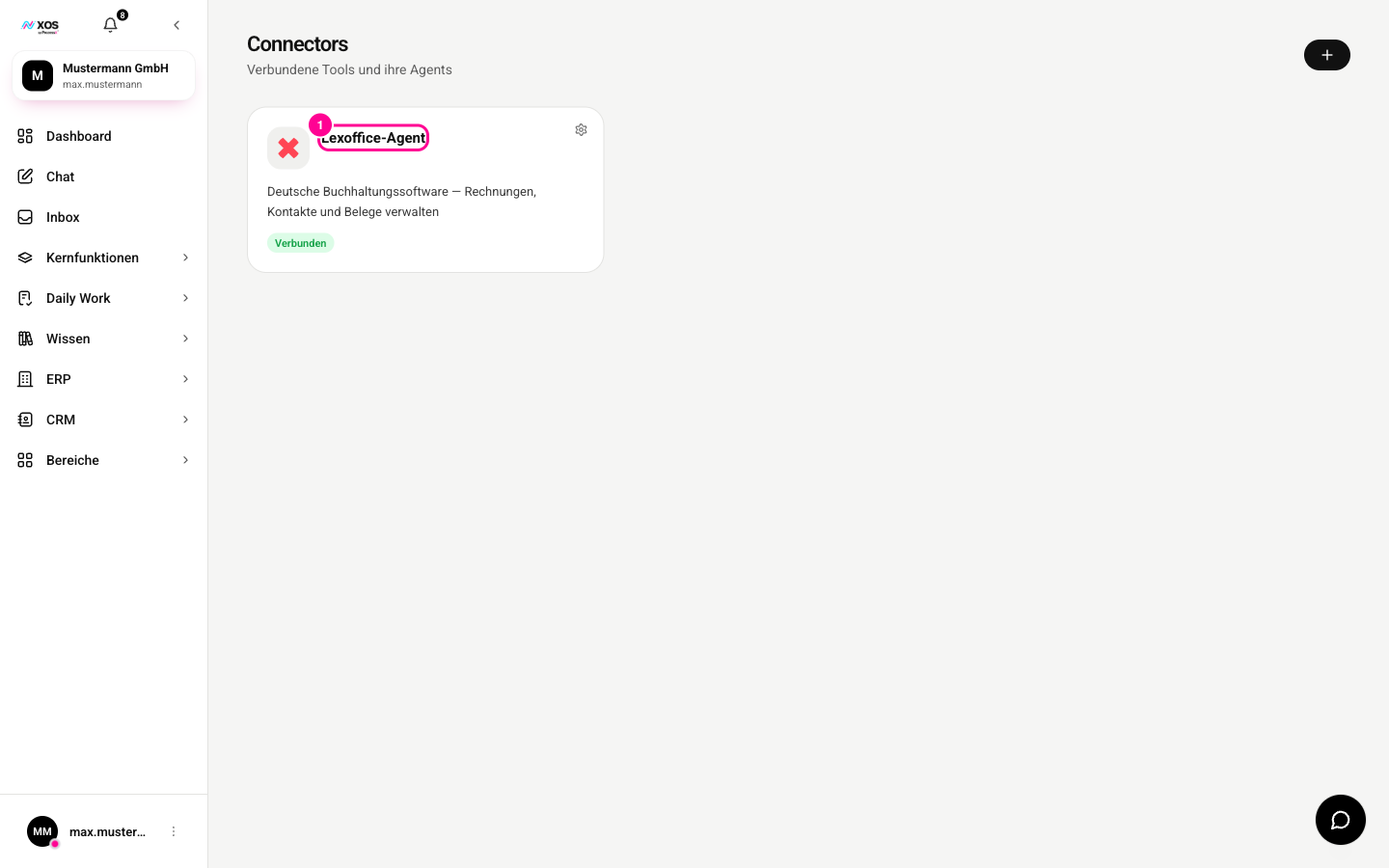
- Open the Connectors page.
- Click a card to see the agent's connections and actions.
- The gear icon on the card opens the Connector settings (Connector-Einstellungen).
- You connect more tools with the plus icon at the top right.
- Then describe the task itself in the chat, and the assistant brings in the specialist.
Which specialists are there?
For every connected third-party tool, XOS automatically builds a connector agent (Connector-Agent), for example a GitHub agent or a Notion agent. It only knows its own tool and carries out the actions there that you are authorized for. If information is missing, it asks specifically. On request, it stores results in a Workplace or in memory.
The social-media-agent (Sascha) is not a connector. It operates the XOS Social Media module: creating and scheduling posts, approvals, calendar, campaigns, analytics, video content. You do not need to connect anything for it. It appears if you have access to the marketing area.
If you have connected your own MCP server, it gets an agent too. Its card carries the label MCP.
What do permissions and status mean?
Each tool has a permission level, which you see in the connector settings (gear icon):
- Read only (Nur lesen): the agent retrieves data but does not change anything
- Write (Schreiben): the agent creates and changes content
- Full access (Vollzugriff): additionally, further-reaching actions such as deleting
- Blocked (Gesperrt): the tool is not available to you
You cannot raise permissions yourself. They are managed centrally and checked for every action.
The status appears as a badge on the card:
- Connected (Verbunden): the connector is running.
- Disconnected (Verbindung getrennt): the login has expired. Open the card and click Reconnect (Neu verbinden).
- Switched off (Ausgeschaltet): connected, but disabled. Open the card to switch it back on.