
Profile & password
How do I change my profile?
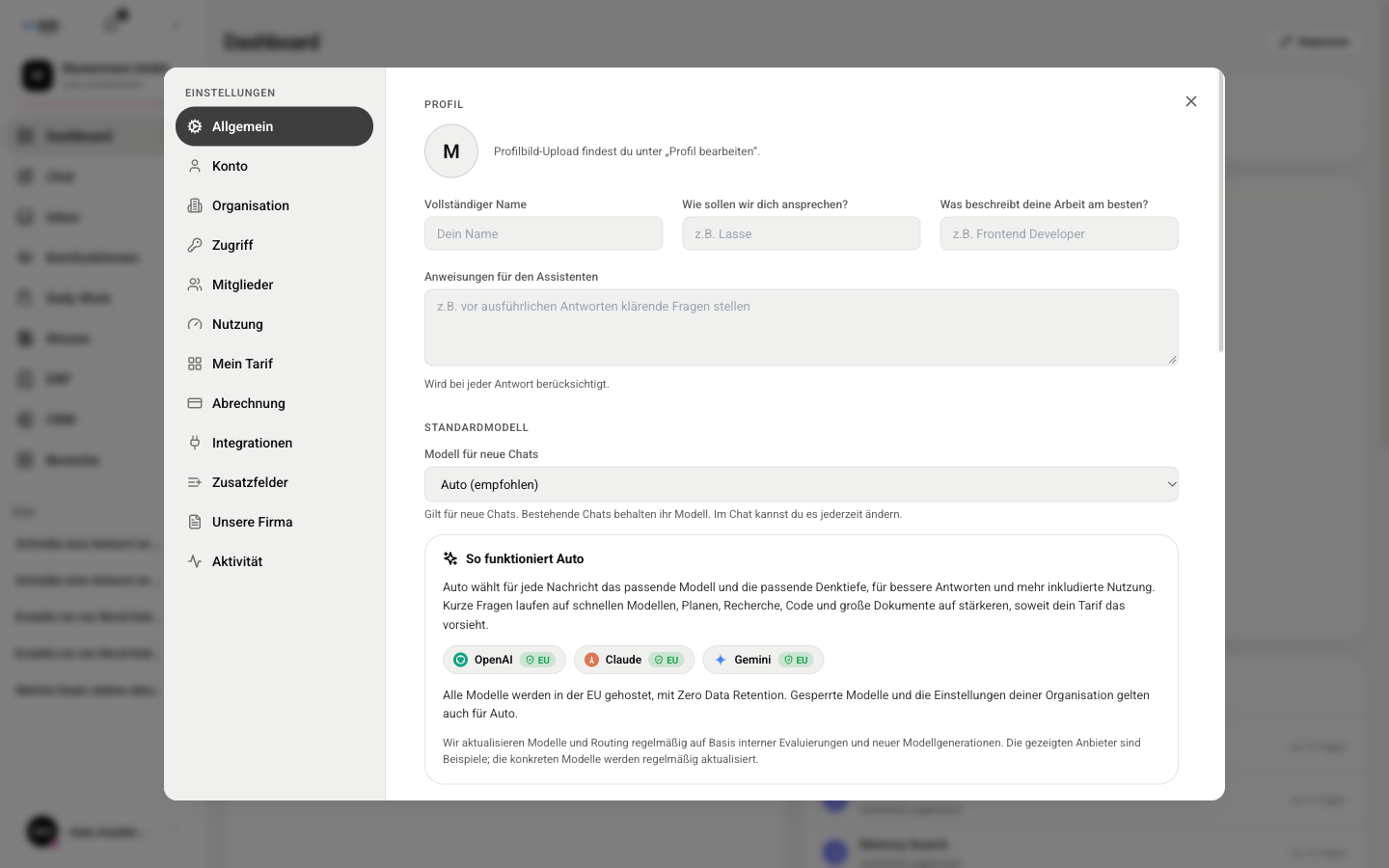
In the General (Allgemein) section you set how XOS and the assistant address you and which model new chats use.
- Open Settings (Einstellungen) and stay in the General (Allgemein) section.
- Under Profile (Profil), enter your Full name (Vollständiger Name), your form of address under What should we call you? (Wie sollen wir dich ansprechen?) and your job under What best describes your work? (Was beschreibt deine Arbeit am besten?).
- Under Instructions for the assistant (Anweisungen für den Assistenten), write down personal preferences, for example “ask clarifying questions before giving detailed answers”. They apply to every answer in the Chat.
- Under Default model (Standardmodell), choose the Model for new chats (Modell für neue Chats). Existing chats keep their model.
- Click Save (Speichern) at the bottom right.
How do I switch between light and dark?
In the General (Allgemein) section, under Appearance (Darstellung), you find the options Light (Hell), Dark (Dunkel) and System. With System, XOS follows your device setting, even if it changes while you work.
How do I change my password?
You change your password in the Account (Konto) section in the Change password (Passwort ändern) card. The card only exists if you log in with username and password. With Google or Microsoft, you manage your password with that provider.
- Open Settings (Einstellungen) and choose Account (Konto).
- Expand the Change password (Passwort ändern) card with Expand (Ausklappen).
- Enter your Current password (Aktuelles Passwort), then the new one twice: under New password (Neues Passwort) and under Confirm new password (Neues Passwort bestätigen).
- Click Change password (Passwort ändern). You then see "Password changed" („Passwort geändert“).
How do I set up two-factor sign-in?
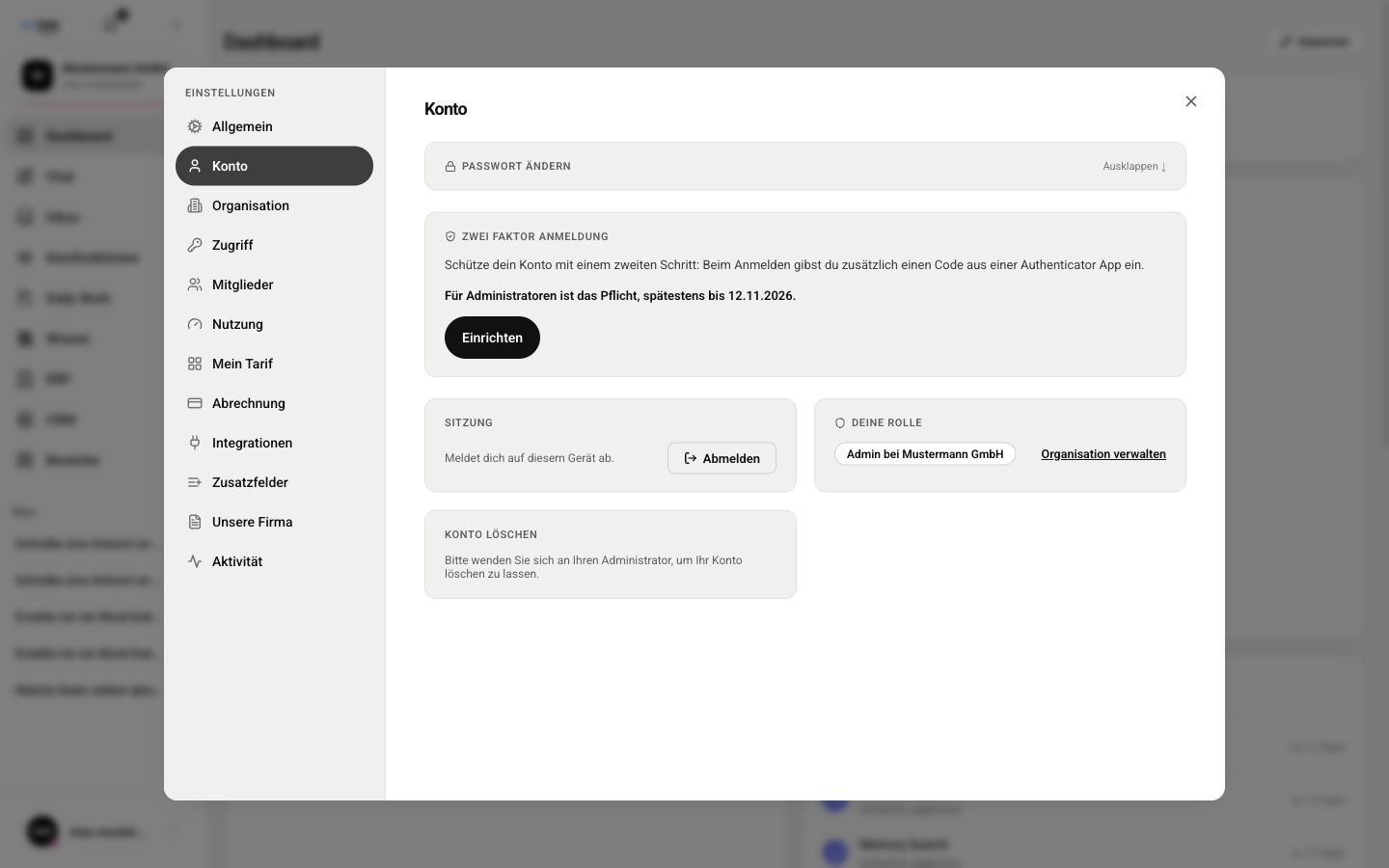
With two-factor sign-in, you also enter a code from an authenticator app when you log in. You set it up in the Account (Konto) section in the card of the same name.
- Open Settings (Einstellungen) and choose Account (Konto).
- In the Two-factor sign-in (Zwei Faktor Anmeldung) card, click Set up (Einrichten) and follow the steps.
- Once it is active, you see how many of your 10 backup codes are left. New backup codes (Neue Backup-Codes) creates ten new ones, Turn off (Ausschalten) disables the feature again. Both require a current code from the app.
How do I log out or delete my account?
The Account (Konto) section has three more cards.
- Session (Sitzung): Log out (Abmelden) logs you out on this device. You can also log out from your user menu at the bottom left. There is no way to log out of all devices at once.
- Your role (Deine Rolle): shows whether you are an Admin or a member of your organization. Admins find the Manage organization (Organisation verwalten) link here.
- Delete account (Konto löschen): you cannot do this yourself. Contact your administrator.