
Social Media
Go to Social MediaWhat Social Media can do
In the Social Media module you plan, create and publish posts directly from XOS. You connect your accounts once, write a rough draft per post, have drafts per channel generated from it and send them through approval. Approved posts go live immediately or at the scheduled time.
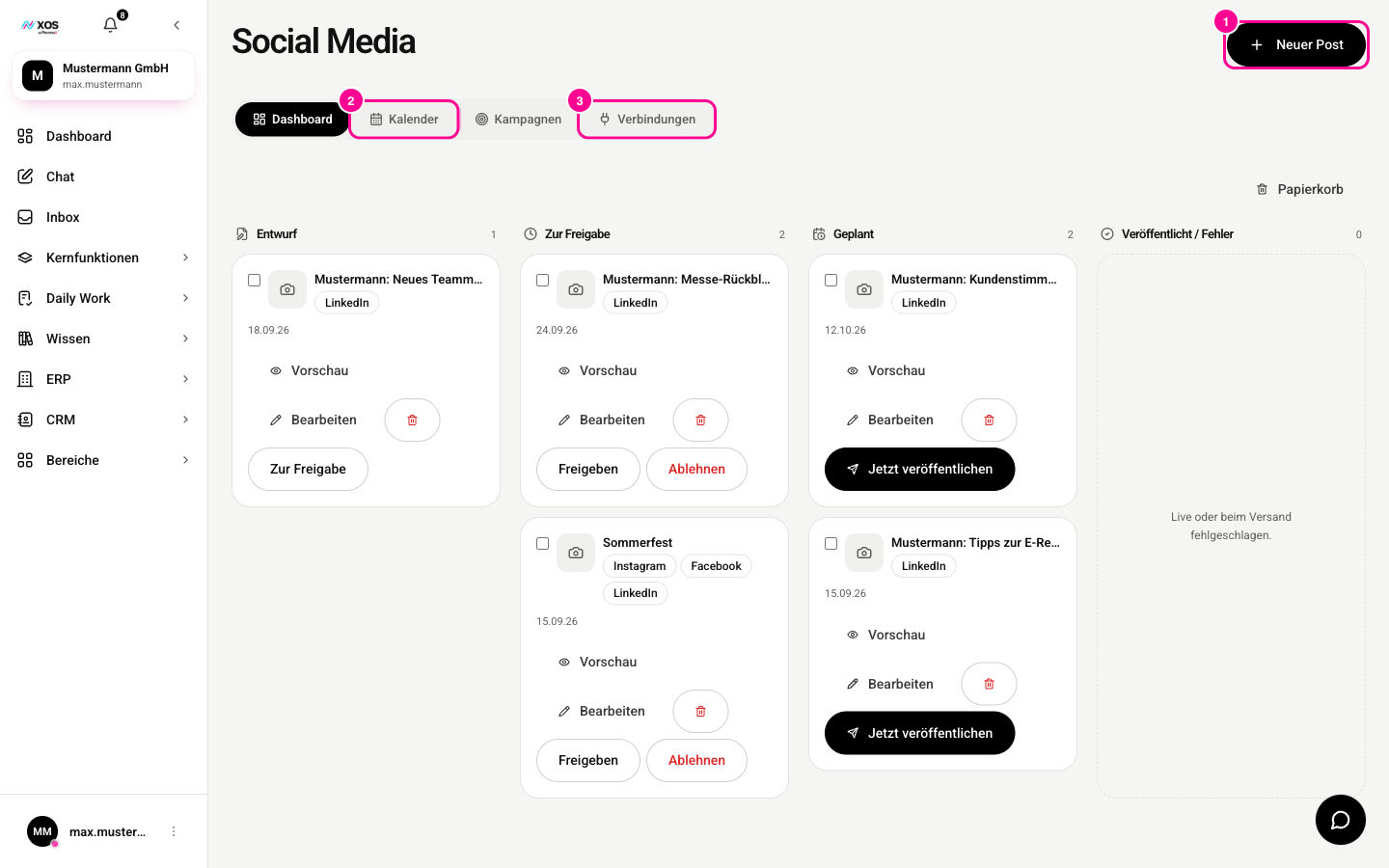
Marker 1 creates a new post, marker 2 opens the calendar, marker 3 the connections to your channels.
At the top you switch between four tabs: Dashboard (all posts as a board by status, including approval), Calendar (Kalender) (monthly view for scheduling), Campaigns (Kampagnen) (group posts) and Connections (Verbindungen) (connect accounts). The New post (Neuer Post) button at the top right is on every tab.
- Channels you can connect: Instagram, Facebook, LinkedIn, X and YouTube, each with multiple accounts.
- For each post, you keep a separate draft for every channel, with its own text length.
- You upload images and videos, drag them in from the workplace or generate them with AI.
How do I connect social media accounts?
Before you post, you connect your accounts in the Connections (Verbindungen) tab. Each platform has a card with its status, for example Not connected (Nicht verbunden) or 2 accounts connected (2 Accounts verbunden).
- Open the Connections (Verbindungen) tab.
- For the platform you want, click Connect (Verbinden). If an account is already connected, the button is called Connect another (Weiteren verbinden).
- Log in to the platform in the popup and confirm access for XOS.
- The popup closes and the account appears on the card.
Each account shows its name and token status: Active (Aktiv), Expires soon (Läuft bald ab) or Expired (Abgelaufen). With Deactivate (Deaktivieren) and Activate (Aktivieren) you temporarily exclude it from posting, with Disconnect (Trennen) you remove it completely.
How do I create a post?
New post (Neuer Post) opens the editor as a window. There you set the content, channels and time.
- Click New post (Neuer Post) at the top right.
- Enter a Title (Titel), for example "Summer party 2026".
- Under Raw content (Rohinhalt), jot down in bullet points what you want to say.
- Add media under Images (Bilder).
- Choose the platforms under Channels (Kanäle).
- Optional: add Hashtags, assign the post to a Campaign (Kampagne) and set a date under Scheduled for (Geplant für).
- The Preview (Vorschau) shows the post per channel. There you can enter a separate text for a channel, otherwise the raw content is used.
- Click Save draft (Entwurf speichern) or go straight to Submit for approval (Zur Freigabe einreichen).
How do approval, calendar and campaigns work?
In the Dashboard tab you see all posts as a board with four columns: Draft (Entwurf), For approval (Zur Freigabe), Scheduled (Geplant) and Published / Error (Veröffentlicht / Fehler). For a post in For approval (Zur Freigabe), you can leave a comment and click Approve (Freigeben) or Reject (Ablehnen). Only administrators can change the approval.
Approved posts with a date go live automatically at the scheduled time. If you want it faster, click Publish now (Jetzt veröffentlichen) in the Scheduled (Geplant) column.
In the Calendar (Kalender) tab you see all scheduled and published posts in a time grid. In the Campaigns (Kampagnen) tab you create campaigns with Name, Description (Beschreibung), Goal (Ziel), Start and End (Ende). You assign posts in the editor using the Campaign (Kampagne) field.
What can the social media agent do?
Besides doing it by hand, there is the agent Sascha, the Social Media Manager (Sascha, den Social Media Manager). You reach him in the Chat. He creates a complete post in one go: he creates the post, generates drafts for the channels you want, generates an image if you like and schedules the post. You only name the topic and channels.