
Team Chat
Go to Team ChatWhat Team Chat is
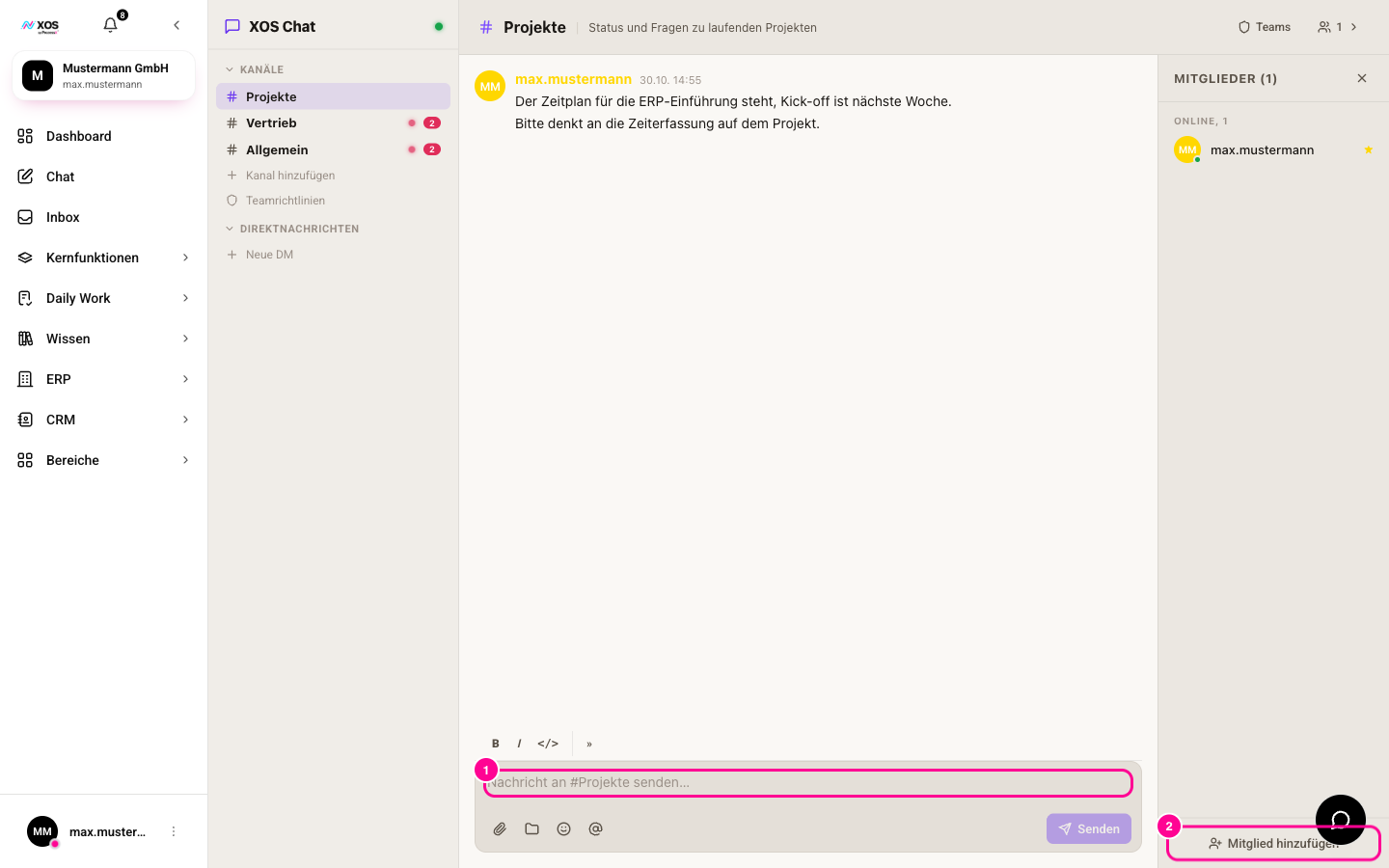
Team Chat is your organization's internal messenger. You find it in the sidebar under Daily Work. In the header it is called XOS Chat. On the left are the CHANNELS (KANÄLE) and DIRECT MESSAGES (DIREKTNACHRICHTEN) sections, in the middle the messages, at the bottom the input field, on the right the member list.
- Public channels (Öffentliche Kanäle) (# icon) can be seen and joined by everyone in your organization.
- Private channels (Private Kanäle) (lock) are only visible to members who have been added.
- Direct messages (Direktnachrichten) are private conversations between you and one person.
- The dot next to XOS Chat shows the connection: green means Connected (Verbunden), red means Disconnected (Getrennt). After a disconnect, the chat reconnects by itself.
How do I create channels and direct messages?
You create new rooms directly in the sidebar. New messages in a channel also appear in the Inbox of the other members.
- Under CHANNELS (KANÄLE), click Add channel (Kanal hinzufügen). The Create new channel (Neuen Kanal erstellen) window opens.
- Enter a name under CHANNEL NAME (KANALNAME), for example it-support. A DESCRIPTION (BESCHREIBUNG) is optional.
- Under TYPE (TYP), choose Public (Öffentlich) or Private (Privat). Optionally, assign a department under DEPARTMENT (ABTEILUNG), otherwise All (Alle) stays selected.
- Click Create (Erstellen). The channel appears in the sidebar and opens. You are automatically its owner.
For a direct message, click New DM (Neue DM) under DIRECT MESSAGES (DIREKTNACHRICHTEN), search by name or email in the Send direct message (Direktnachricht senden) window and click the person. A green or gray dot shows online or offline.
How do I write messages and attach files?
Type your text in the Send message to #channelname (Nachricht an #kanalname senden) field (marker 1) and press Enter. Shift+Enter adds a line break, or you click Send (Senden).
- The bar above the field formats selected text: B for bold, I for italic, for code, » for a quote.
- The paperclip icon (Attach file (Datei anhängen)) attaches files from your computer. Executable program files are blocked, and the size is limited to 10 MB per file.
- The folder icon (Send file from workplace (Datei aus Workplace senden)) sends a file from a workplace to the channel.
- The @ symbol starts a mention, the smiley opens the emojis.
- For a workplace file, click the folder icon. Select workplace (Workplace auswählen) opens.
- Choose the workplace and then the file.
- One click on the file sends it to the channel right away. ← Back (← Zurück) takes you back to the workplace selection.
How do I mention agents and manage members?
In Team Chat you can also address AI agents directly. When you type @, the PEOPLE & AGENTS (PERSONEN & AGENTEN) list appears, and agents carry the Agent label. Which agents are suggested depends on the areas you have access to. You manage your agents under Connectors and Agent management.
- Type @ and the beginning of a name. Choose a person or an agent.
- Finish writing the message and send it.
A mentioned person gets a notification in the Inbox. With an agent, ... is typing (... tippt) appears briefly, then it posts its answer in the channel with the AI agent (KI-Agent) badge.
The Members (Mitglieder) button at the top right shows and hides the member list. It separates ONLINE and OFFLINE. Here is how to add someone:
- Open the member list with the Members (Mitglieder) button.
- Click Add member (Mitglied hinzufügen) at the bottom (marker 2) and type a name in the search field.
- Choose the person from the results. They are in the channel right away.
How do teams and team policies work?
Team Chat uses the same teams as the organization knowledge. Every team automatically has its own channel with a people icon. Anyone who joins the team is in the channel right away, anyone who leaves the team drops out. An admin creates teams under Organization knowledge with Manage teams (Teams verwalten).
- Open a channel and click Teams at the top right. Only admins and the channel owner see this button.
- Check the teams that should see the channel. Without a check mark under Write (Schreiben), the team can only read.
- At the bottom you see who is added and who drops out. Save (Speichern) applies the access.
Under Team policies (Teamrichtlinien) in the channel list, admins set per team whether it may create channels and address agents, and whether direct messages are only possible within shared teams.