
Inviting & managing your team
Where do I manage my team?
Team management is in Settings (Einstellungen) in the Members (Mitglieder) section. Only admins see it.
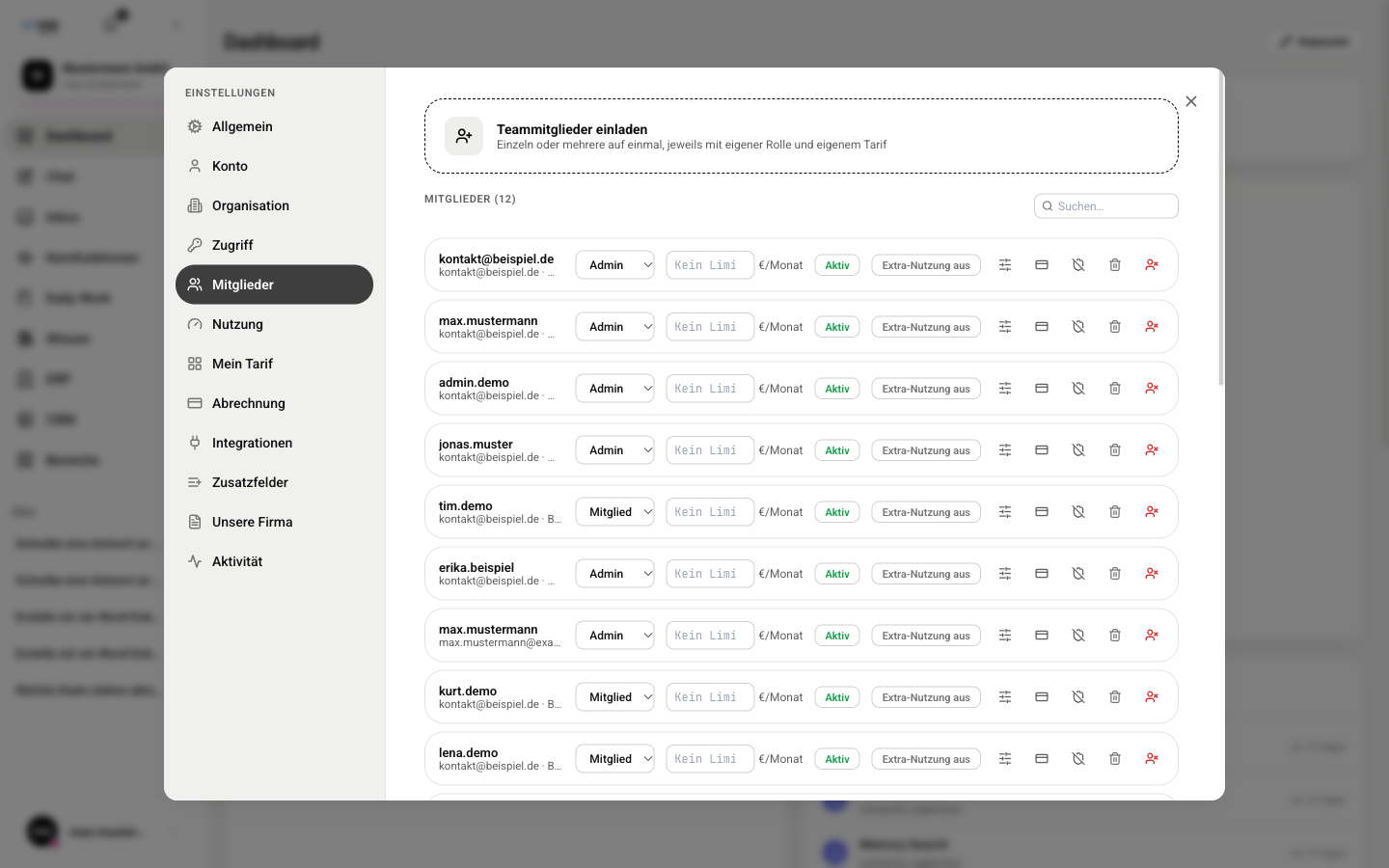
At the top is the Invite team members (Teammitglieder einladen) button, below it each member in their own row. From six members on, a search field appears. Pending invitations are listed further down.
How do I invite team members?
You invite by email. The person sets up their own password, you don't assign one. You can invite several people at once, each with their own role and plan.
- Open Settings (Einstellungen), choose Members (Mitglieder) and click Invite team members (Teammitglieder einladen).
- Enter the email address. For more people, click Add another person (Weitere Person).
- For each person, choose the role (User or Admin), the plan and, if needed, the areas.
- Click Continue to cost overview (Weiter zur Kostenübersicht) and check the costs. They only apply once the person accepts the invitation.
- Accept the terms of use and the return and cancellation policy and click Order with obligation to pay (Zahlungspflichtig bestellen). XOS sends the invitation by email.
What does the invited person do?
The person clicks Create account (Account erstellen) in the email and lands on the Accept invitation (Einladung annehmen) page. There they sign up with Google or Microsoft or via Sign up with username & password (Mit Benutzername & Passwort registrieren).
- They enter their First name (Vorname) and Last name (Nachname).
- They choose a Password (Passwort) with at least 12 characters, one digit and one special character.
- After submitting, Account created! (Account erstellt!) appears. From then on, they log in with their email address.
How do I manage pending invitations?
Under Pending invitations (Offene Einladungen) in the Members (Mitglieder) section you see each invitation with its email address and status: Pending (Ausstehend), Expired (Abgelaufen) or Revoked (Widerrufen).
- Open Settings (Einstellungen), Members (Mitglieder) and scroll to Pending invitations (Offene Einladungen).
- Click Resend (Erneut senden) on the entry to send the same invitation again.
- Or click Revoke (Widerrufen) (trash icon). XOS shows "Invitation revoked" („Einladung widerrufen“), and the link is invalid immediately.
How do I change roles and access?
For existing members, every change in the row takes effect immediately. There is no Save (Speichern) button.
- Role (Rolle): dropdown with Admin and Member (Mitglied).
- €/month (€/Monat): personal monthly limit. The number is saved when you leave the field. If it is empty, there is no individual limit.
- Active (Aktiv) or Inactive (Inaktiv): an inactive account can no longer log in but is kept.
- Extra usage (Extra-Nutzung): lets the person use purchased credits once their seat credits are used up.
- Other icons in the row: edit the person's modules, change the plan and reset two-factor sign-in.