
Chat & sessions
Go to ChatHow do I start a new session?
In the chat, you tell the agent what you want done. Every conversation runs in its own Session that you can find again later.
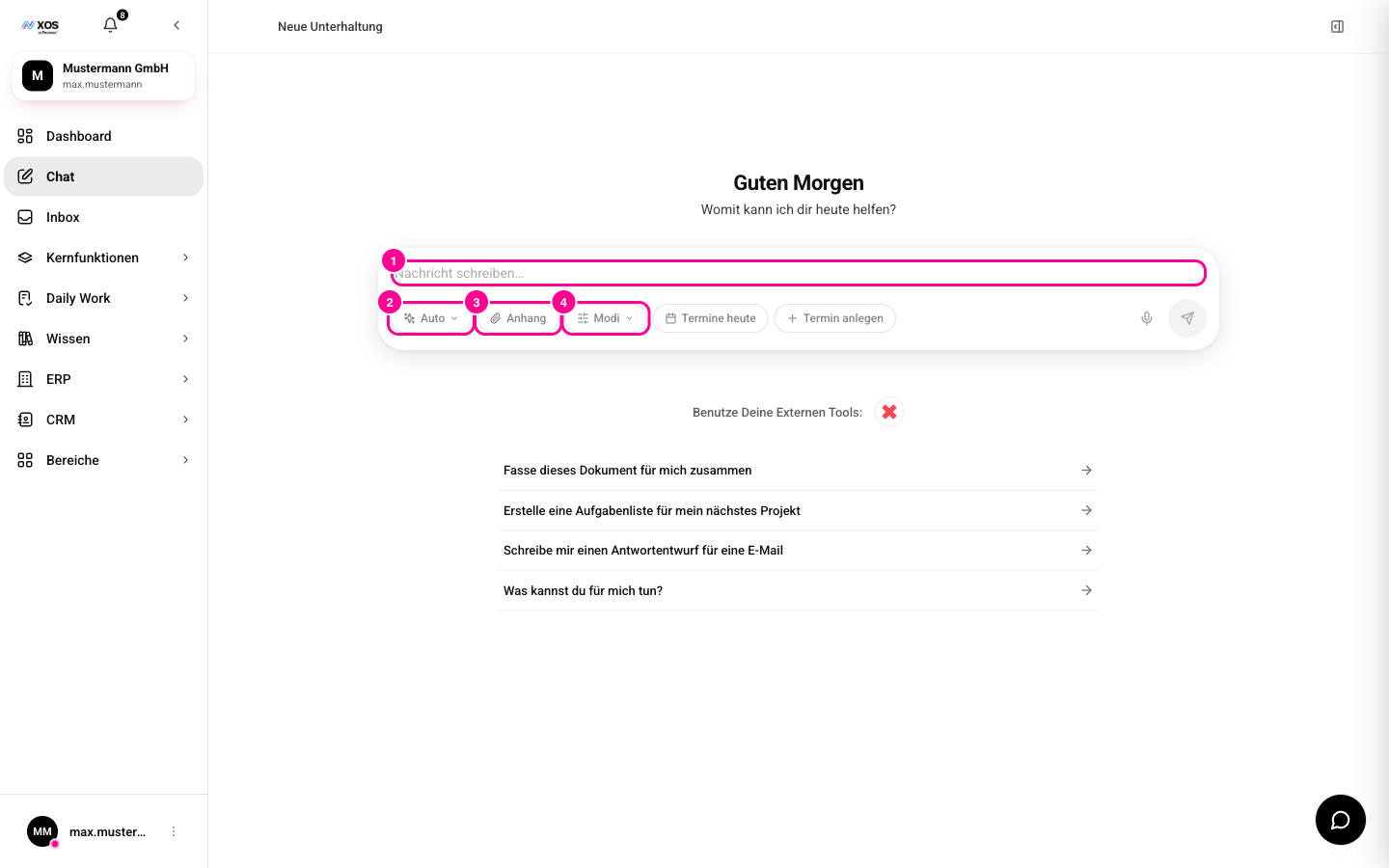
- Click Chat in the sidebar. If you're already in the chat, the click starts a fresh conversation.
- Type your task into the input field (marker 1) and send it. Or click one of the suggestion cards below it, which is sent directly as a message.
How do I work with the agent?
Write what you need in plain language. Press Enter to send and Shift+Enter for a line break. While the agent is working, the send button turns into a red Stop (Stopp) button that cancels the response.
Below the input field you control the next message (see image above):
- Auto (marker 2): picks the AI model. More in the article Model choice, dictation & Canvas.
- Attachment (Anhang) (marker 3): attaches a file.
- Modes (Modi) (marker 4): Plan, Web Search, Deep research or Brainstorming, see the article Plan mode, web & deep research.
If you type / at the start of a line, a command menu with working modes opens: /plan, /debug, /explore, /fix, /refactor, /test and /docs.
How do I attach a file?
You can give the agent an image, a PDF or a text, spreadsheet or code file (for example .txt, .md, .csv, .json, .docx, .xlsx).
- Click Attachment (Anhang) below the input field (marker 3).
- Select the file. It appears as a small tile above the input field. Click the × to remove it again.
- Write your message and send it. The file goes along.
How do I find and manage sessions?
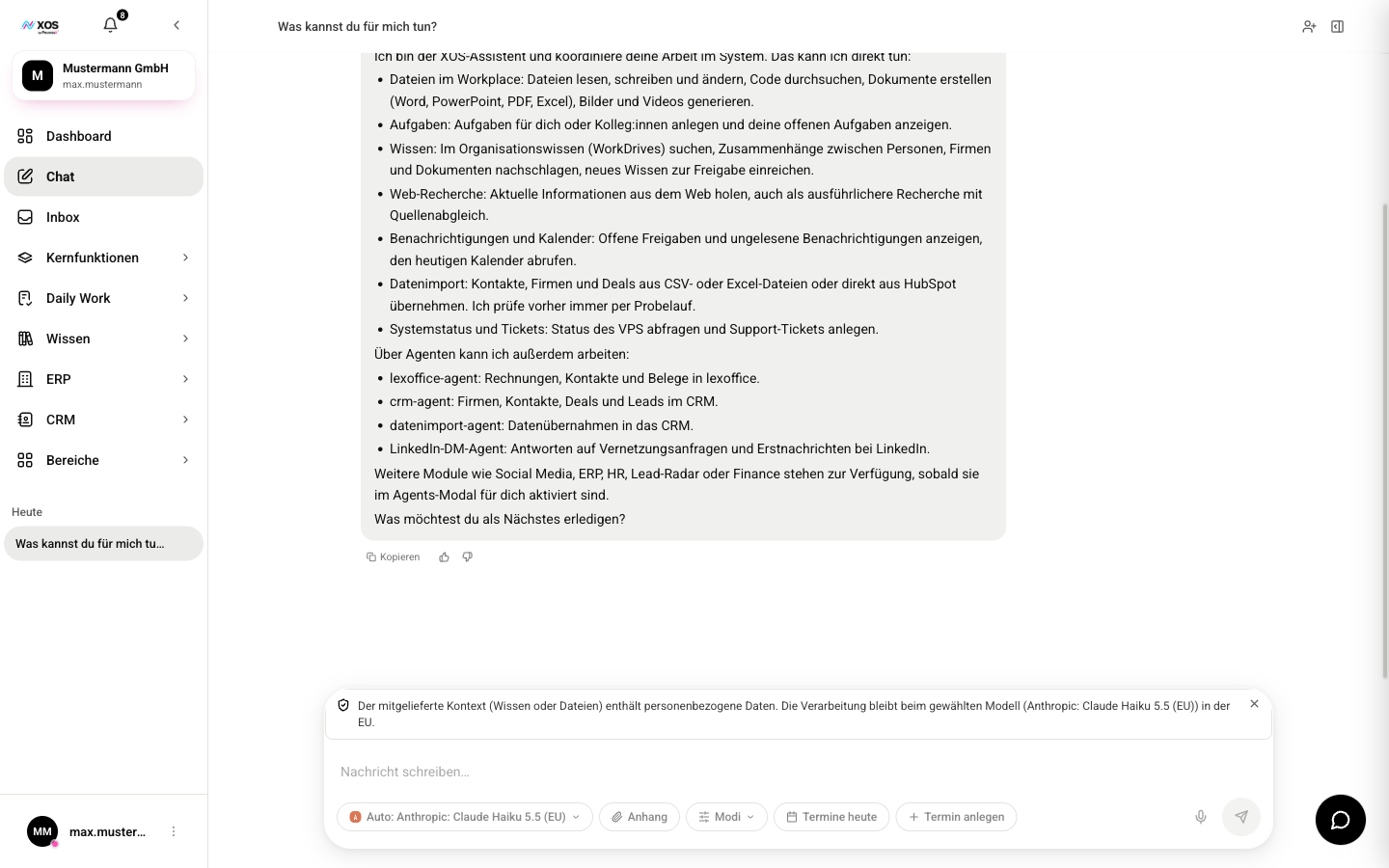
Your chats are listed in the sidebar, grouped by Today (Heute), Last 7 days (Letzte 7 Tage) and Older (Älter). A click opens the session with its full history.
- Hover over a session and click the three-dot menu.
- Choose Share (Teilen), Rename (Umbenennen) or Delete (Löschen).
- For Rename (Umbenennen), type the new name and confirm with Enter (cancel with Escape).
How do I share a session with colleagues?
You can share a session with people in your organization so they can read along or work on it with you.
- Open the session menu (three dots) and click Share (Teilen). The Share session (Session teilen) window opens.
- Search for the person in the Search users… (Benutzer suchen…) field and select them.
- Set the permission: Read only (Nur lesen) or Read & write (Lesen & Schreiben).
- Click Share (Teilen). The person is then listed under Shared with (Geteilt mit), where you can also remove the share.