
Frequently asked questions (FAQ)
How do I connect a connector?
Connectors link XOS to programs you already use, for example Google, Microsoft, Notion or Lexoffice. Every connected connector gets its own agent for the chat.
- In the sidebar, open Core features (Kernfunktionen) and then Connectors.
- Click the + button at the top right.
- Find the program and click it.
- Sign in once via login (OAuth) or enter an access key that you create in the program's settings.
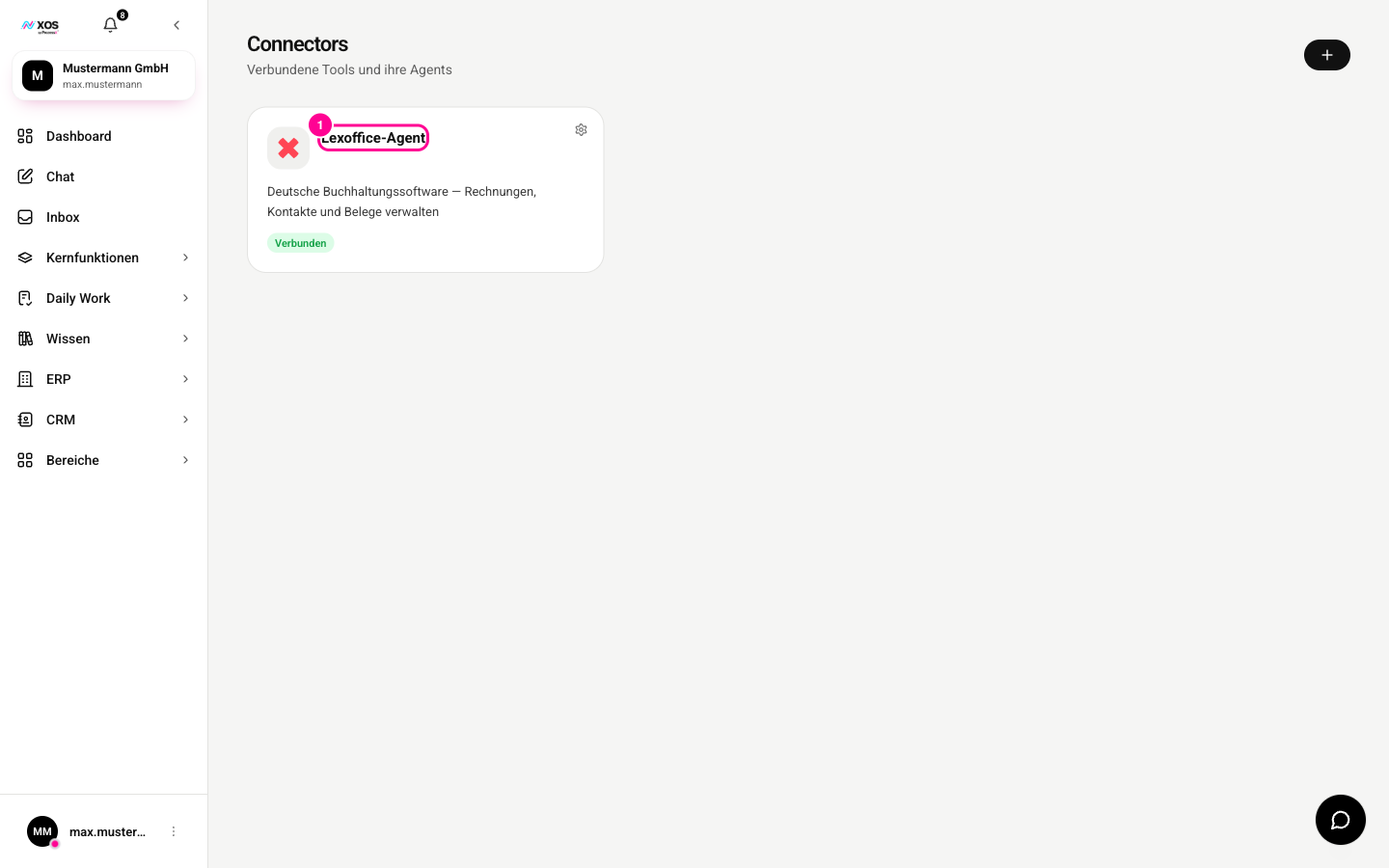
Marker 1 shows a connected connector with the status Connected (Verbunden). Use the plus at the top right to add more.
How do I invite a team member?
Only admins can invite people, in the settings under Members (Mitglieder).
- Click your name in the bottom left, then Settings (Einstellungen).
- Choose the Members (Mitglieder) section and click the Invite team members (Teammitglieder einladen) card.
- Enter the email address and choose the role and plan for the seat. You can invite several people at once.
- Check the cost overview and place the order. The person receives an email with a link to set up their account themselves.
What does "Approval required" („Freigabe erforderlich“) mean?
Before an agent does something consequential, such as creating an invoice, deleting or canceling something, it asks you first. This is a safety measure, not an error.
- Open the Inbox and switch to the Action required (Aktion erforderlich) tab.
- Open the entry marked Approval required (Freigabe erforderlich).
- Click Accept (Annehmen) to run the action, or Reject (Ablehnen) to discard it.
Which plans are there?
The plan applies per seat, not to the whole organization. You can mix plans freely from person to person.
- Beginner, €29.99 per seat per month: chat with all models, dashboard, Inbox, Daily Work, connectors and agents, personal Workplaces, 5 GB storage. Support via AI and knowledge base, with no guaranteed response time.
- Pro, €49.99 per seat per month: everything in Beginner, plus organization knowledge, Deep Research, scheduled workflows, double usage, 10 GB storage and a response within 2 business days.
- Max, €99.99 per seat per month: everything in Pro, plus four times the usage, 25 GB storage, log export, your own MCP server and Agent Builder, branding, a Customer Success Manager with onboarding and a response within 1 business day.
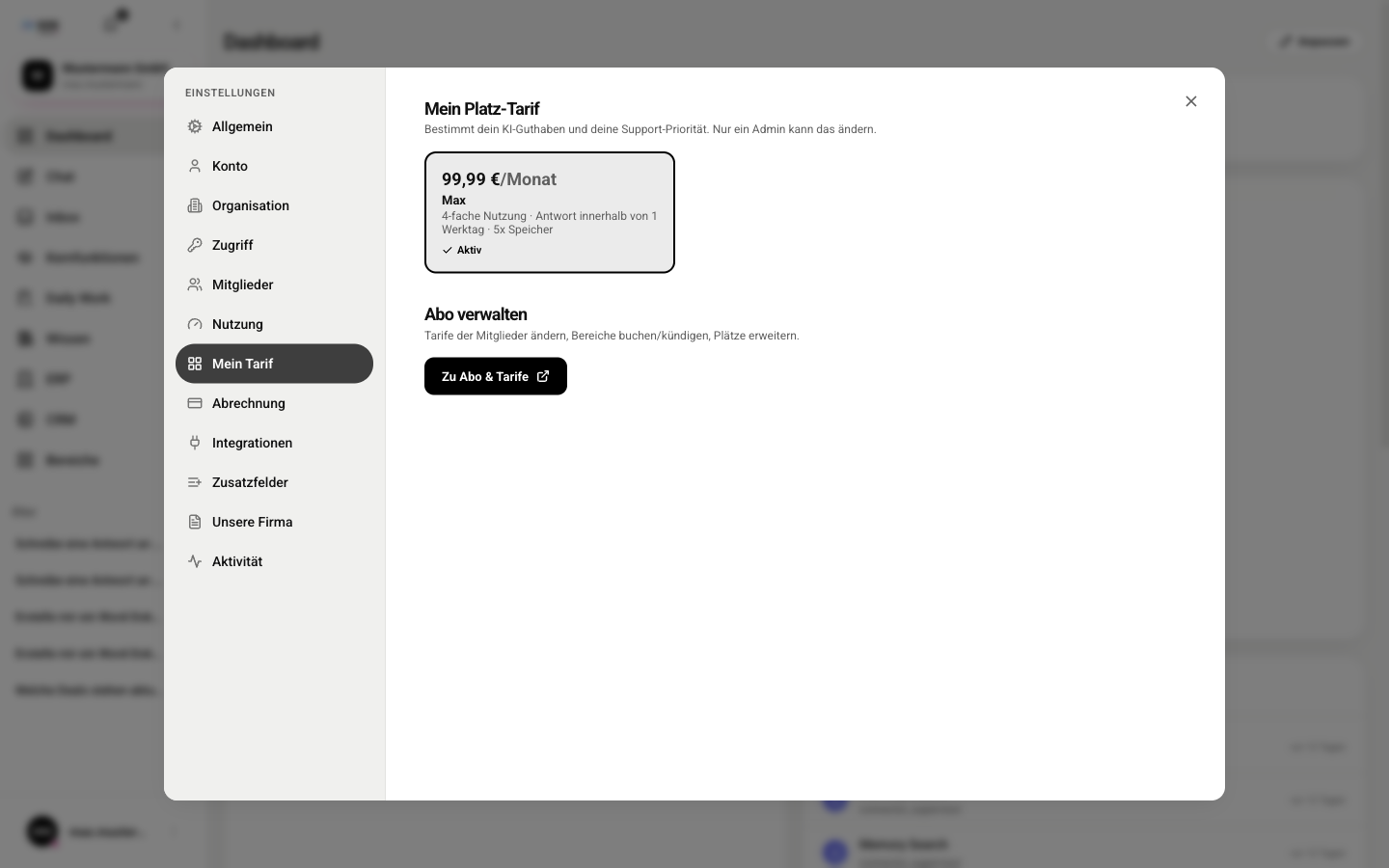
Under My plan (Mein Tarif) in the settings you see the plan of your seat. Only an admin can change it. Specialist modules are booked per seat on top, independently of the plan. Enterprise is available on request, just write to us.
I forgot my password. What now?
You reset it yourself, without having to ask anyone.
- On the login page, click Forgot password? (Passwort vergessen?).
- Enter your email address and click Request reset link (Reset-Link anfordern).
- Open the link in the email. It is valid for 1 hour.
- Choose a new password with at least 12 characters, one digit and one special character.
Where do the files an agent creates end up?
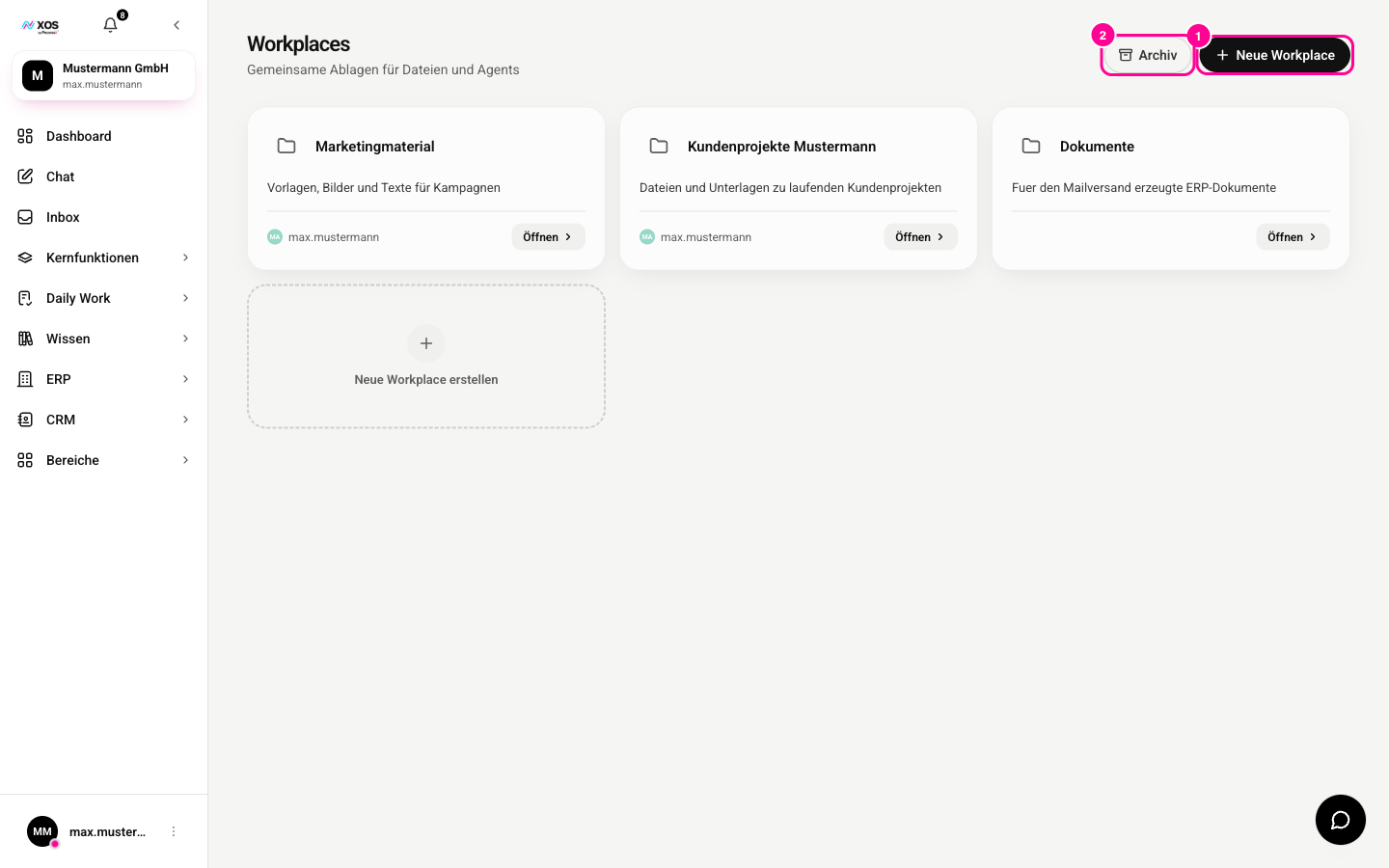
Everything an agent creates for you, such as reports, presentations, Word or PDF documents and spreadsheets, is automatically saved in a Workplace. You download it from there.
- Open Workplaces.
- Click Open (Öffnen) on the Workplace you want.
- Download the file from there.
How do I create a workflow?
A workflow handles a task automatically, at the push of a button or on a schedule, for example every Monday. The former Routines page (Routinen) no longer exists. Everything now runs as a workflow.
- Open Workflows under Core features (Kernfunktionen).
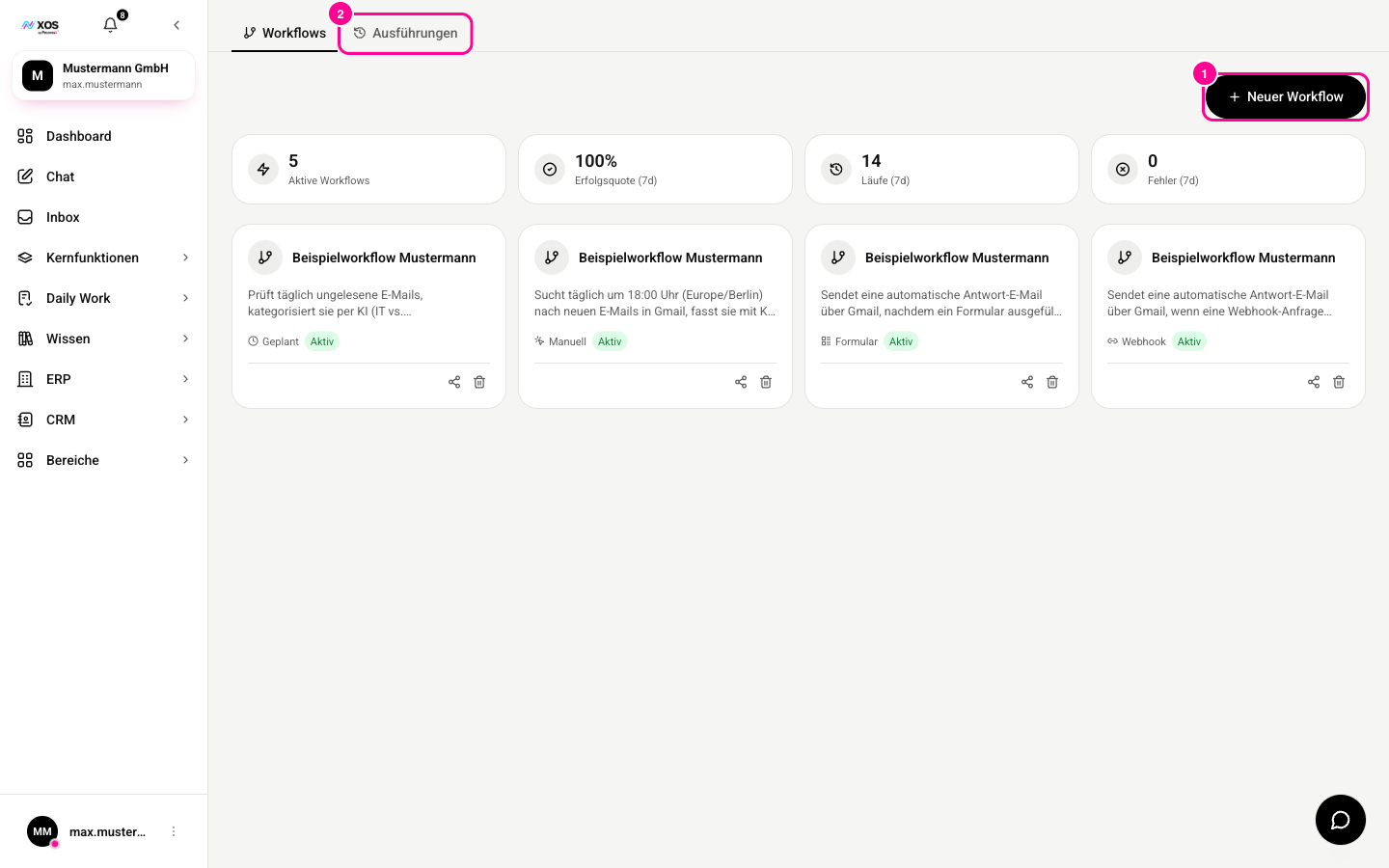
- Click New workflow (Neuer Workflow) (marker 1) or start with a template from the workflow library.
- Choose the trigger: Manual (Manuell), Scheduled (Geplant), Webhook or Form (Formular).
- Add the steps and connect them in the order you want.
- Click Save (Speichern). In the Runs (Ausführungen) tab (marker 2) you see every run with its result.
How do I share a session with colleagues?
You can share a chat with specific team members instead of explaining everything again.
- Open the session in Chat or use the session's menu in the sidebar.
- Choose Share session (Session teilen).
- Search for the person by name and choose Read (Lesen) (view only) or Write (Schreiben) (contribute).
- Click Share (Teilen). The person then sees the session in their own overview.
Where can I see what an agent did?
Activity shows the log of what happened in your organization, including the actions of agents. That way you see what was done and when.
- Click your name in the bottom left, then Settings (Einstellungen).
- Choose the Activity (Aktivität) section, or open Activity directly.