
Layout & navigation
Go to the dashboardThe sidebar at a glance
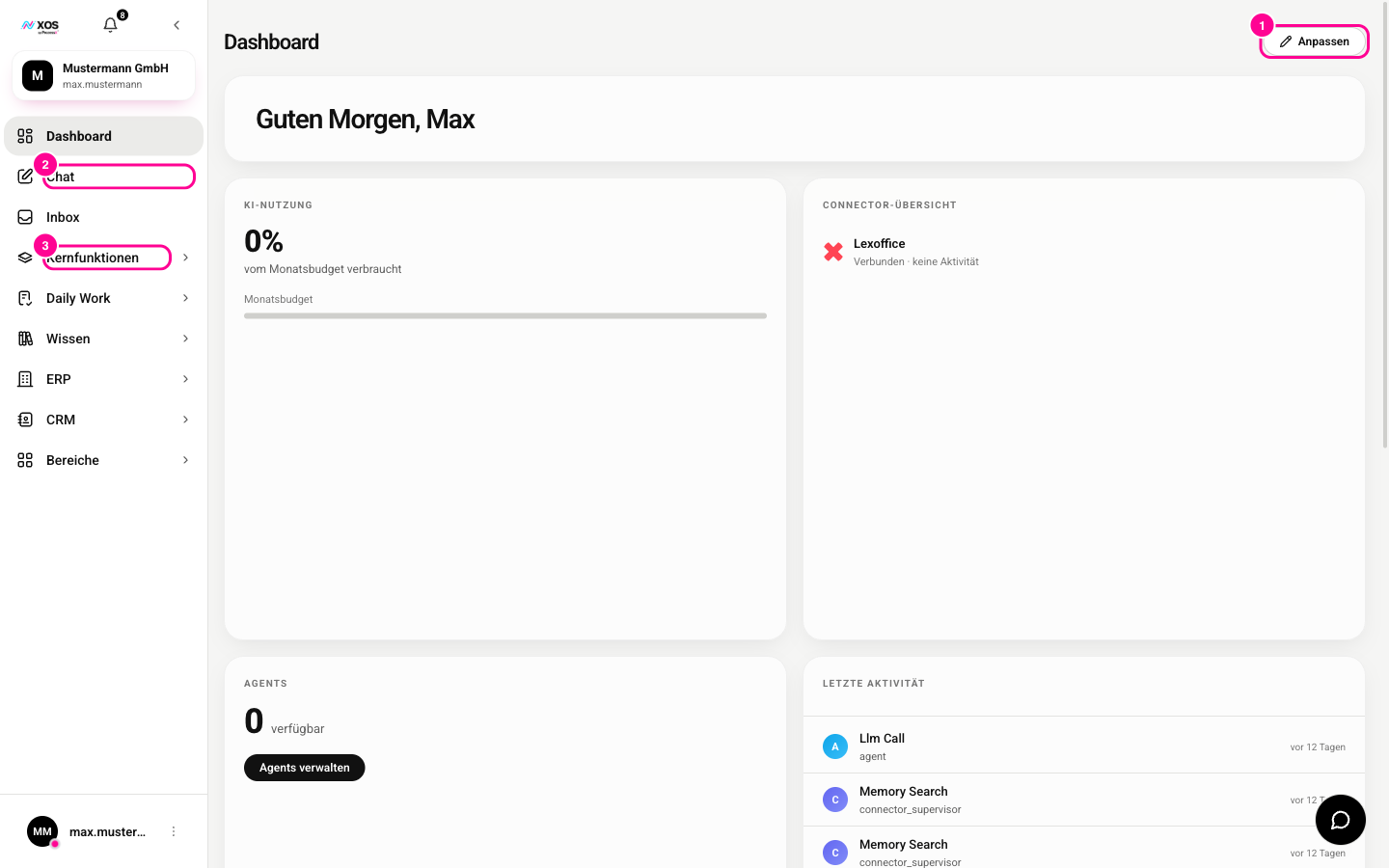
The sidebar on the left accompanies you on every page. At the top are the XOS logo, the bell for notifications and an arrow that collapses the sidebar into a narrow icon column. Below that, a card shows your organization and your user name.
- Dashboard: your customizable home page.
- Chat: starts a new conversation. If you are already in the chat, a click resets the input field.
- Inbox: messages and open questions in the Inbox. A number next to the entry shows what is still open.
Below are the collapsible groups. You expand what you need, and the rest stays closed.
- Core features (Kernfunktionen): Workflows, Connectors (Connectoren), Agents (Agenten).
- Daily Work: Tasks (Aufgaben), Projects (Projekte), Emails (E-Mails), Team Chat, Telephony (Telefonie), Meetings.
- Knowledge (Wissen): Workplaces and Organization knowledge (Organisationswissen).
- ERP: Overview (Übersicht), Product Catalog (Produktkatalog), Customers (Kunden), Warehouse (Lager), Purchasing (Einkauf), Sales Orders (Verkauf), Recurring Contracts (Wiederkehrende Verträge), Quotes & Invoices (Angebote & Rechnungen), Documents & Archive (Belege & Archiv), Accounting (Buchhaltung), Commission Statements (Provisionsabrechnung), Inventory (Inventar), Company Data (Firmendaten).
- CRM: Dashboard, Contacts (Kontakte), Companies (Firmen), Deals, Pipeline, Lead Scoring.
- Areas (Bereiche): HR Hub, Sales Hub, Marketing Hub and Finance Hub, each with its own modules.
The active entry is highlighted. Anything your organization has not booked stays visible, is grayed out and is labeled Not booked (Nicht gebucht) (for plan features From Pro (Ab Pro)). A click shows you how to add it. Entries marked Soon (Bald) are announced but not yet available.
The dashboard
The Dashboard is your home page made of tiles (widgets) that you arrange freely. By default you see a greeting, Connector overview (Connector-Übersicht), AI usage (KI-Nutzung) (usage this month against your quota), Agents, Recent activity (Letzte Aktivität) and Inbox. You can also add live tiles from your connected tools, such as open GitHub issues or recently edited Notion pages. Which ones are available depends on your connectors.
- Click Customize (Anpassen) at the top right (marker 1).
- Drag the tiles with your mouse into the order you want.
- Remove: click ✕ on the widget.
- New tile: open the catalog with Widget and choose one. Some ask for one more detail, such as the repository.
- Click Save (Speichern) or discard with Cancel (Abbrechen).
Your sessions in the sidebar
Below the navigation, the sidebar lists your chat sessions, grouped into Today (Heute), Last 7 days (Letzte 7 Tage) and Older (Älter). The list scrolls on its own, and the navigation at the top stays visible. A click opens the session in the chat.
When you hover over a session, a menu icon appears on the right with these entries:
- Share (Teilen): makes the session accessible to others (only for sessions not yet shared).
- Rename (Umbenennen): the name becomes editable in the list. Enter confirms, Escape cancels.
- Delete (Löschen): removes the session permanently.
Switching organizations and the profile menu
The card at the top shows your current organization. If you belong to several, it has an arrow on the right: a click opens the list, and after you choose, XOS reloads and you work in the new organization. You find the same Org switcher (Org-Umschalter) at the bottom above your user row.
A click on your user row at the bottom left (profile picture or initials) opens the profile menu:
- Settings (Einstellungen): opens your settings window.
- Help (Hilfe): opens this Help Center in a new tab.
- Log out (Abmelden): logs you out and takes you back to the login.