
Model choice, dictation & Canvas
Go to ChatWhich AI model answers?
Below the text field in the chat, a button shows the active model, Auto by default. A click opens the list, grouped by provider, with a detail card for each model.
- Click the button with the model name (marker 2).
- Choose a model. You can switch in the middle of a conversation and the history is kept.
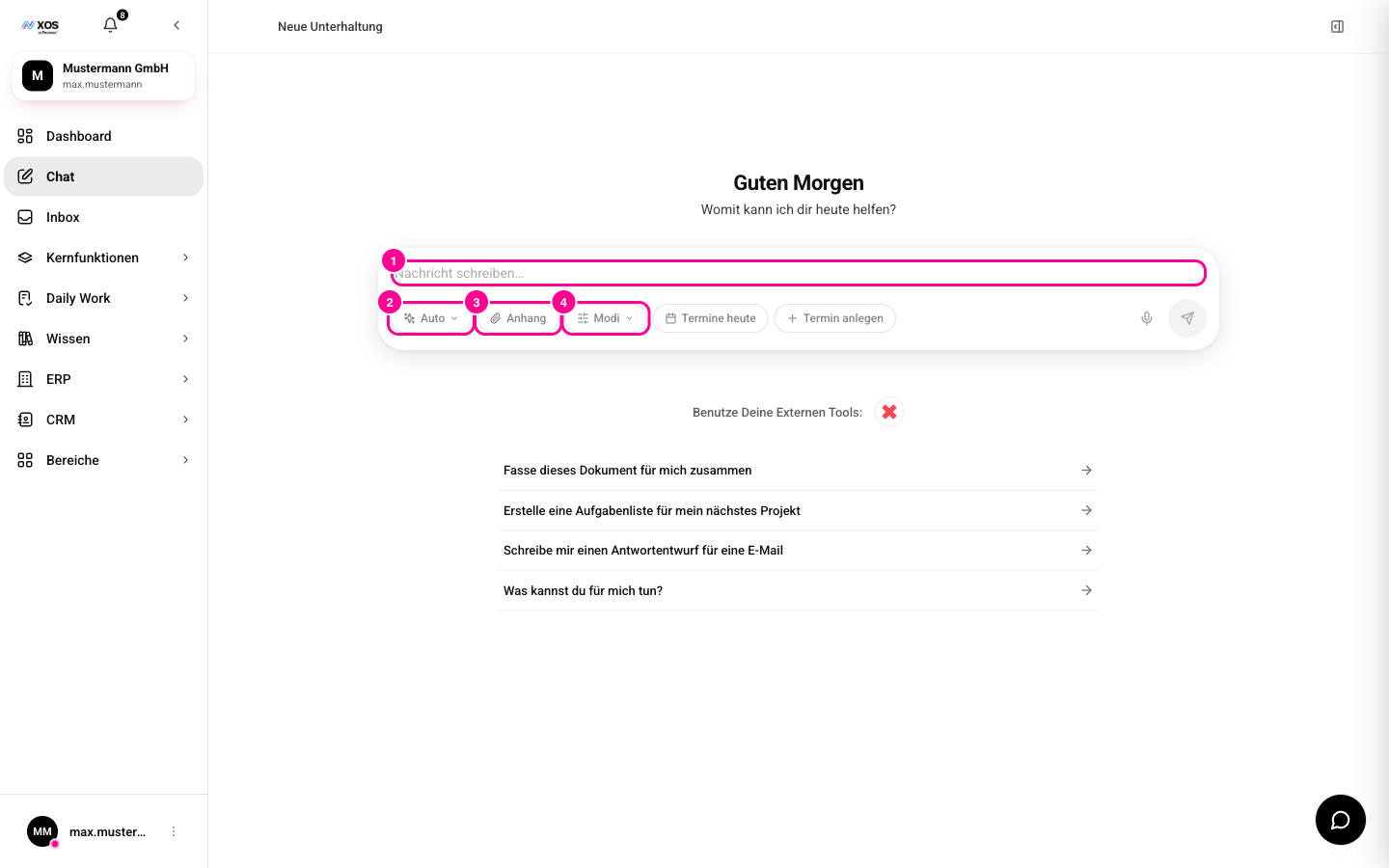
You can choose models from Anthropic, OpenAI and Mistral, plus more via OpenRouter. With Auto, XOS decides per message and uses a stronger model when you have it plan, start a deep research, send large attachments or ask very detailed questions.
What does the PII Gate do?
The PII Gate checks every message for personal data such as names, addresses or bank details. If the selected model is outside the EU and the message contains such data, that one turn goes to a model with processing in the EU. The gate is on by default in every plan.
Administrators turn it off under Settings, Organization (Einstellungen, Organisation). To do so, they type the word ABSCHALTEN (turn off). Turning it back on takes one click. Both directions are logged with person and time. While the gate is off, all users see a notice above the text field, and the organization is responsible for the consequences.
How do I dictate instead of typing?
Next to the send button there's a microphone icon you use to speak your message.
- Click the Microphone (Mikrofon). Recording starts and the button shows a level meter.
- Speak your text and click the microphone again.
- The recognized text appears in the input field. Edit it if needed and send it.
What is Canvas?
When an agent creates a presentation, a text document or a spreadsheet for you, the Document (Dokument) tab opens to the right of the chat. There you edit the result directly, without requesting it again.
- Click into the text in the Document (Dokument) tab and change or add to it. It saves automatically shortly after you stop typing.
- Let the agent keep working alongside you. You're both editing the same document.
- Download the result with the buttons at the bottom of the panel: PPTX, DOCX, XLSX or PDF.