
CRM
Go to CRMThe views in the CRM
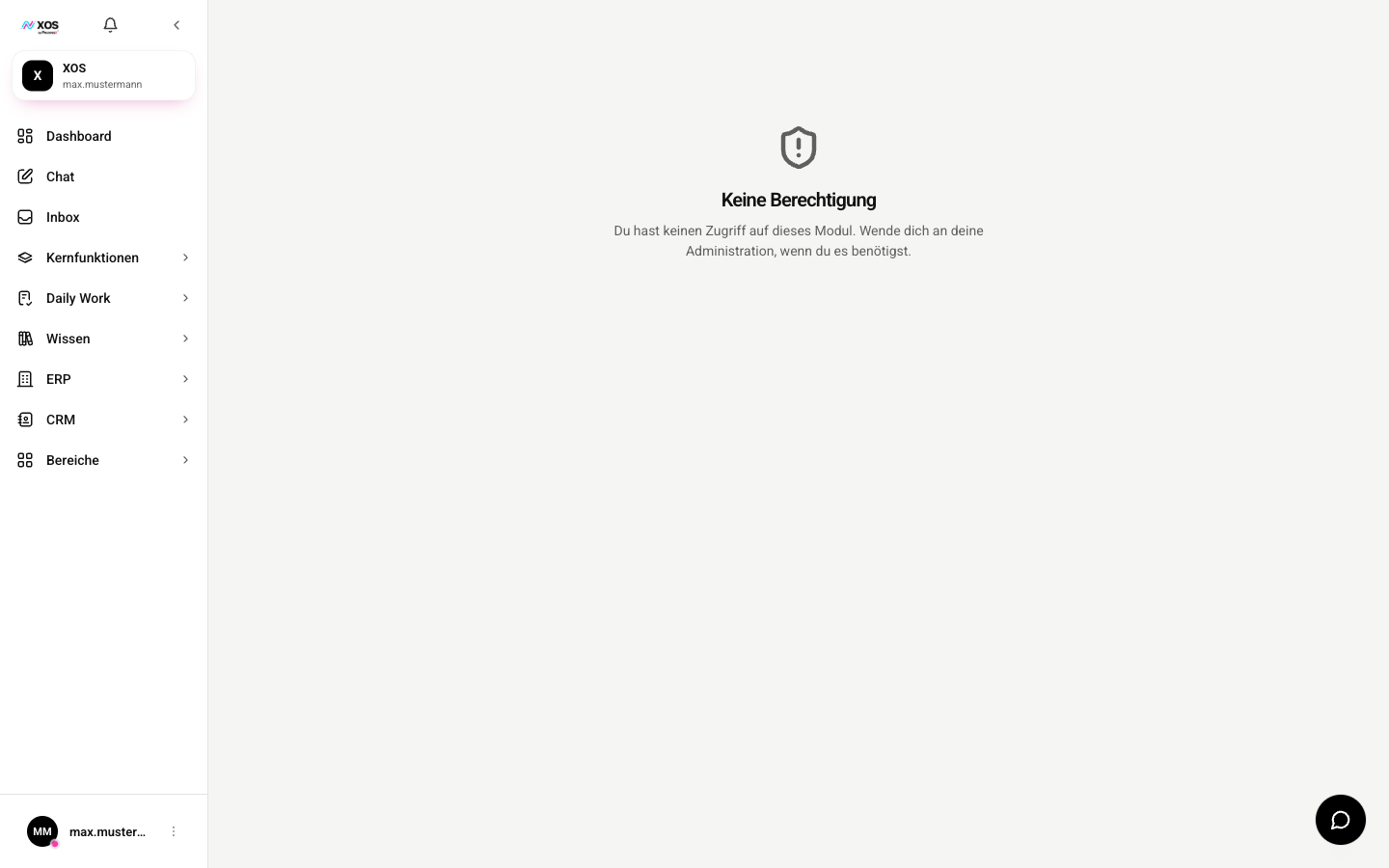
The CRM is your organization's single searchable contact database, which other modules also draw on. It has its own item in the sidebar with six entries.
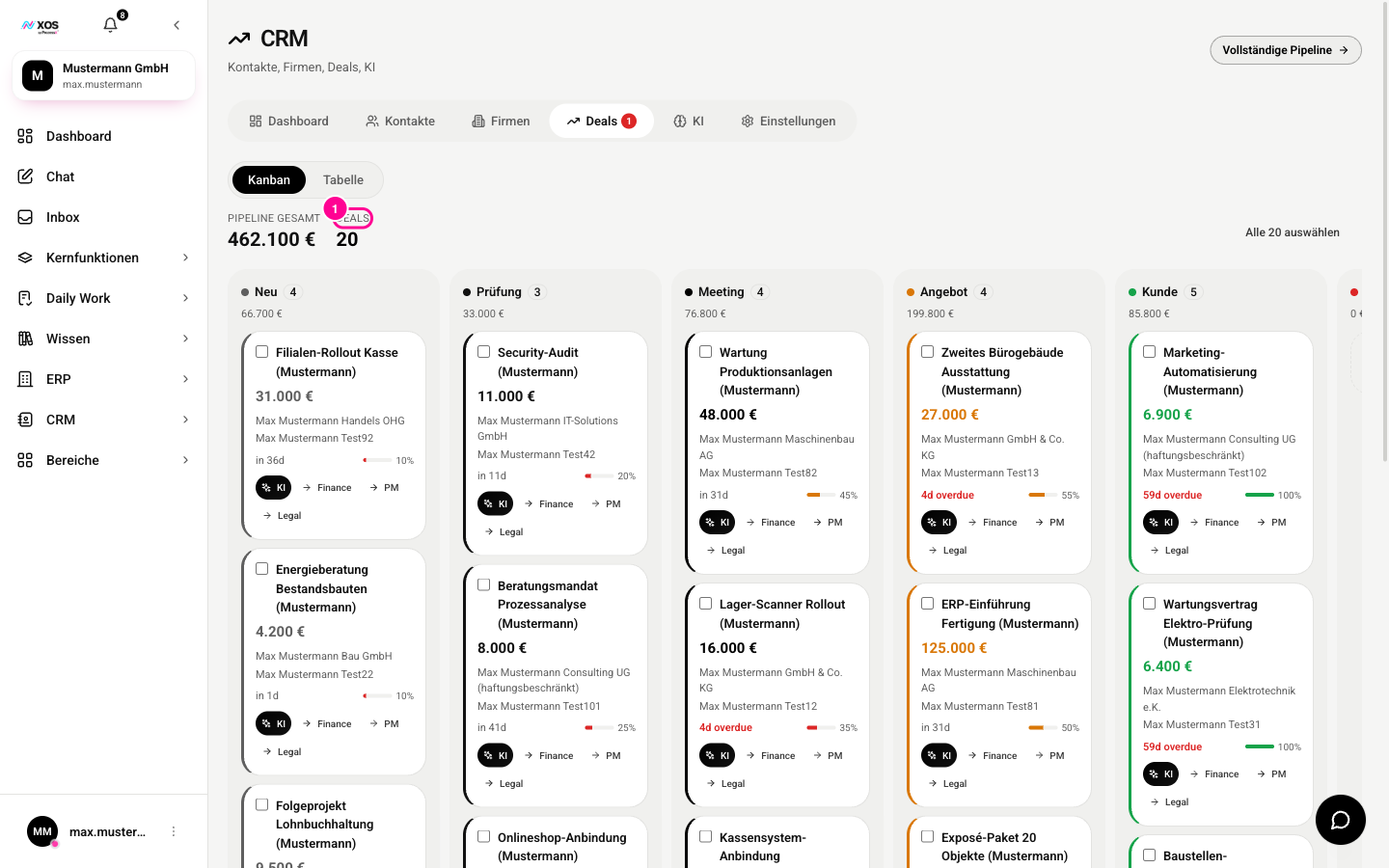
Marker 1 shows the Deals tab.
- Dashboard: key figures, a timeline of recent activity and AI suggestions that you can accept or reject one by one.
- Contacts (Kontakte): all people, with search, filters and the Lead Score. Import and export run via CSV.
- Companies (Firmen): the same for companies, also with CSV import and export. A company can be linked to a customer from the inventory management system.
- Deals: your sales opportunities as a Kanban board or table.
- Pipeline: the full view of the same deals with a forecast, see below.
- Lead Scoring: the rating of your contacts, see below.
Every deal moves through the stages New (Neu), Review (Prüfung), Meeting, Quote (Angebot) and Customer (Kunde). A lost deal lands in the Rejected (Abgelehnt) stage.
Pipeline and forecast
The pipeline shows all CRM deals as a Kanban board and calculates how much revenue you can expect. It's part of the CRM package, not the Sales Hub.
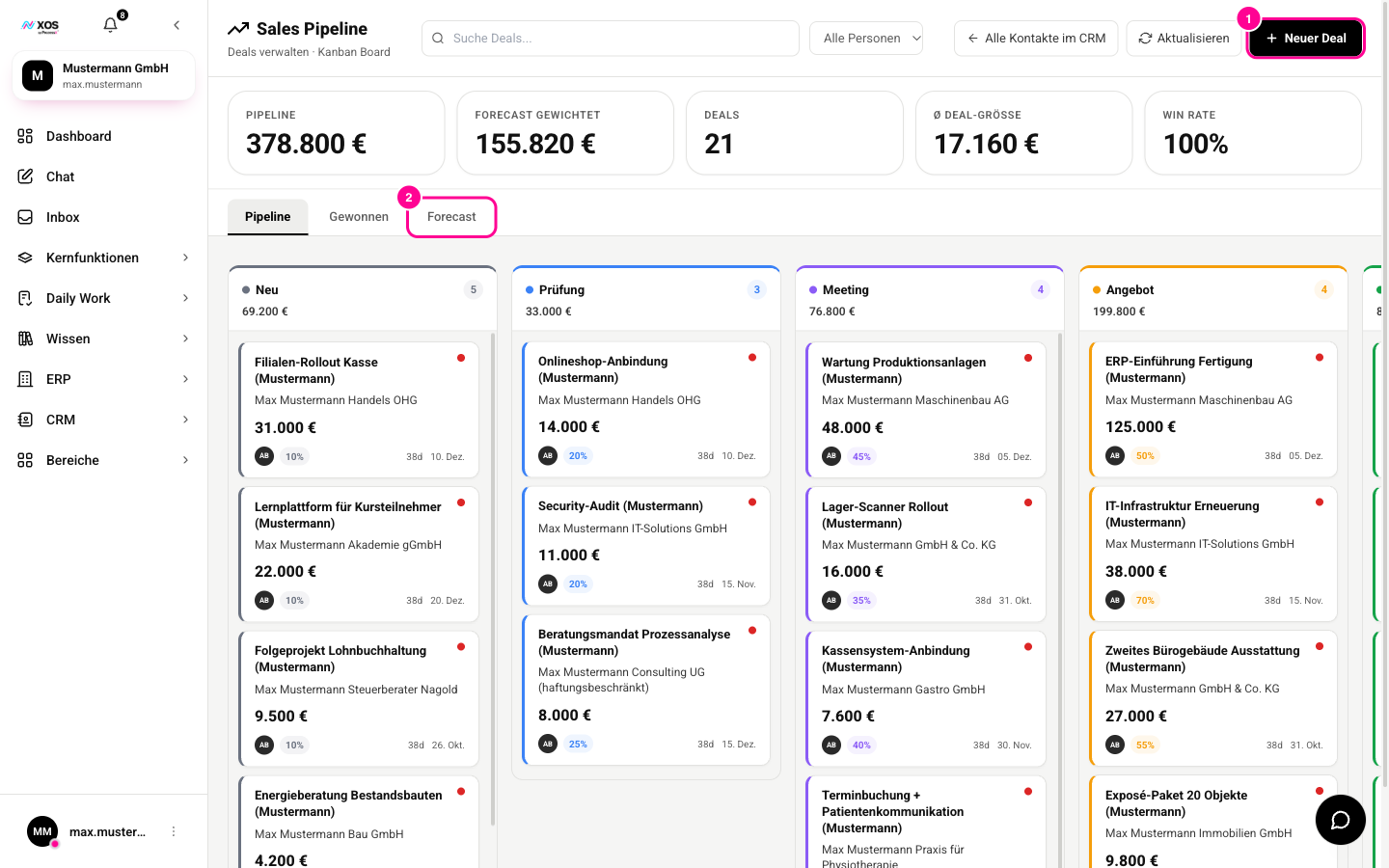
- In the sidebar under CRM, open the Pipeline entry.
- Create a deal with New deal (Neuer Deal) (marker 1).
- Drag and drop a deal into the next stage.
- Open the Forecast tab (marker 2) for the revenue forecast. The Won (Gewonnen) tab shows closed deals.
Lead Scoring
Lead Scoring gives each contact a number between 0 and 100 and shows the distribution of your contacts and a weighted pipeline forecast. It also lists at-risk deals (gefährdete Deals), meaning those with a win probability below 40 percent.
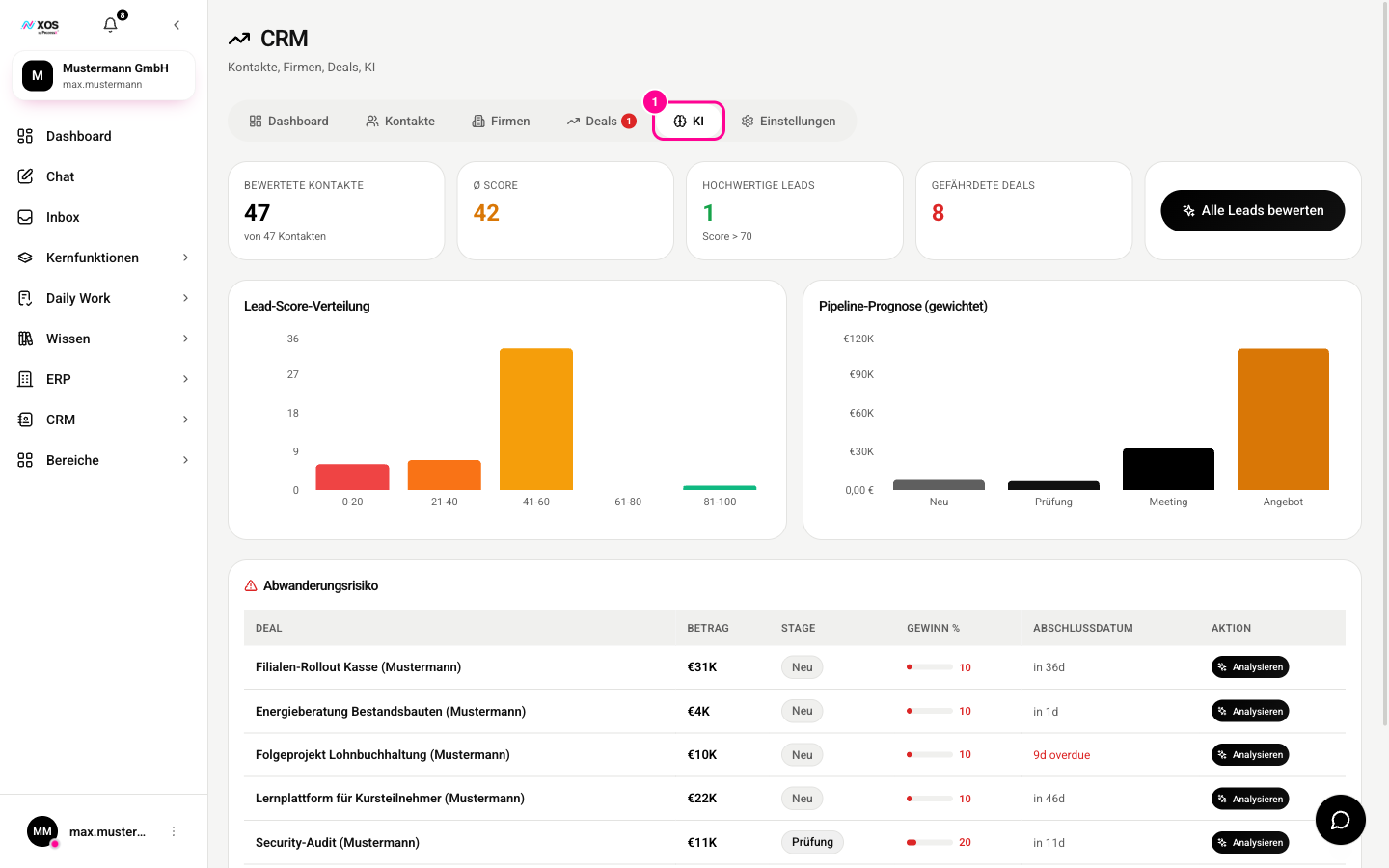
You reach the view via CRM and Lead Scoring in the sidebar. On the page, it's the AI (KI) tab (marker 1).
Only what's already in the CRM is scored, meaning your contacts and deals. No outside data is purchased. Scoring follows fixed rules, with no AI estimating along. It consists of two halves of 50 points each:
- Fit: company size, position, industry and target customer, data quality.
- Engagement: last contact, assigned to, activities in the last 90 days, deal and lifecycle, source. Calls in both directions, emails and meetings count as contact. Notes and tasks don't.
In the Sales Hub, Lead Tracking shows the same number, broken down by factor, with a history of what changed it and when.
How do I schedule a meeting with a contact?
If you've connected Google or Outlook under Connectors, you can schedule a meeting straight from the contact. The appointment lands in your calendar and as a meeting in the contact's activity.
- Open the contact and click Meeting at the top.
- Choose a title, date, time and duration.
- The contact's email address is already filled in as a participant. Separate additional ones with commas.
- XOS attaches Google Meet or Teams as the video link. For an in-person appointment, uncheck the box.
- Click Create and invite (Anlegen und einladen).
Telephony
With Telephony, you call contacts straight from the CRM, and the call is logged in the contact's history. Telephony is a separate package and can only be booked together with the CRM.
- In the sidebar under Daily Work, open the Telephony (Telefonie) entry.
- Click Call (Anrufen) and enter a number or choose a contact.
- In the call list, filter by All (Alle), Incoming (Eingehend), Outgoing (Ausgehend) and Missed (Verpasst).