
Inbox
Go to InboxWhat the Inbox is
The Inbox collects everything that needs your attention: questions from AI agents, approvals for sensitive actions, invitations to workspaces, task handoffs and simple notices such as meeting minutes or mentions.
- Question (Frage): An agent needs an answer from you to keep working.
- Approval required (Freigabe erforderlich): An agent wants to perform a sensitive action and is waiting for your okay.
- Workspace invitation (Workspace-Einladung): You have been invited to a workspace.
- Handoff (Übergabe): A task has been handed off to you or your department.
- Meeting minutes (Meeting-Protokoll), Mention (Erwähnung), Shared (Geteilt), Routine and System: plain notices, usually just for reading.
In the top left next to the logo you see the bell (Glocke) with a number as soon as something is unread or open. One click opens the latest notifications, and Show all in Inbox (Alle in Inbox anzeigen) takes you to the full Inbox. New events also appear briefly as a pop-up in the bottom right.
How are tabs and filters organized?
Below the heading there are three tabs, each showing the number of entries. Marker 1 shows the Action required (Aktion erforderlich) tab, marker 2 the Mark all read (Alle gelesen) button in the top right.
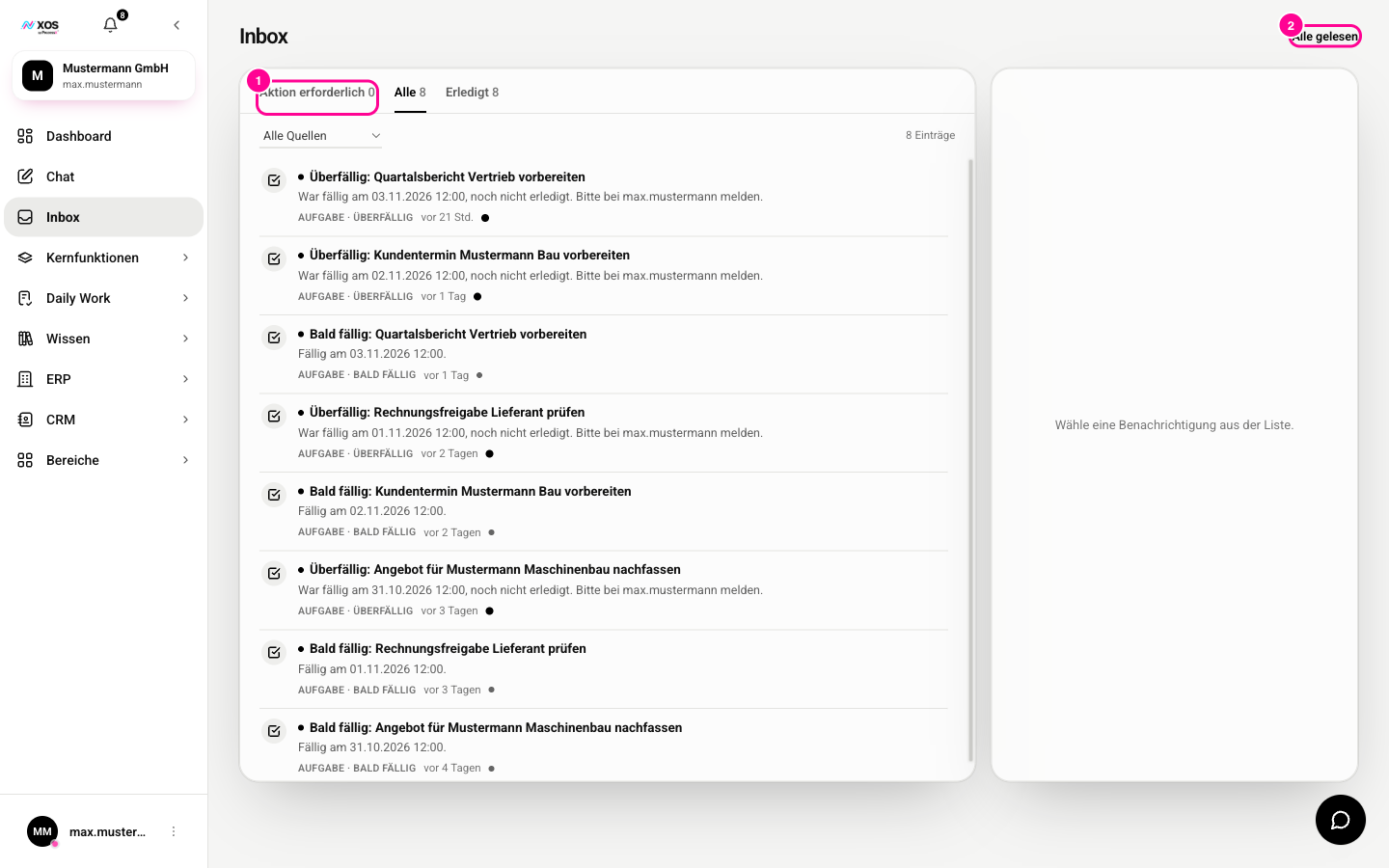
- Action required (Aktion erforderlich): only open items that need a decision from you. This tab is active when you open the Inbox.
- All (Alle): every notification. Agent questions you have already answered are hidden here.
- Done (Erledigt): answered or read entries, dimmed and with your response below, for example Approved (Freigegeben), Rejected (Abgelehnt) or Invitation accepted (Einladung angenommen).
If there are entries from several sources, a dropdown appears on the right. With All sources (Alle Quellen) you see everything, otherwise you pick a source such as Question (Frage) or Handoff (Übergabe).
How do I answer an agent's question?
If an agent in Chat is waiting for input from you, its question lands in the Inbox with the label Question (Frage).
- Open the Inbox on the Action required (Aktion erforderlich) tab.
- Click the entry labeled Question (Frage). The form appears right next to it.
- Answer the questions: choose an option, tick several boxes, pick a date or type text. Questions with an asterisk are required.
- Click Send answer (Antwort senden). The button becomes active once all required questions are filled in.
Your answer goes to the waiting agent automatically as a message, and it continues working right away. The entry disappears from the open list.
Handling approvals, handoffs and invitations
If an agent wants to perform a sensitive action, it appears as Approval required (Freigabe erforderlich) with the planned operation and its risk level. You have three options:
- Approve (Freigeben): The agent performs the action as proposed.
- Edit (Bearbeiten): You describe in a text field what should happen instead, for example a different amount. Send (Senden) approves the changed version, Cancel (Abbrechen) discards your change.
- Reject (Ablehnen): The action is not performed.
A Handoff (Übergabe) can go two ways. If a supervisor is already working on the task in a chat session, Follow in chat (Im Chat verfolgen) takes you there and you decide with Keep session (Session behalten) or Discard session (Session verwerfen). Discarding permanently deletes the session including its history and must be confirmed. If there is no session yet, you take on the handoff with Accept (Annehmen). Details opens the full view.
You answer a Workspace invitation (Workspace-Einladung) directly in the card with Accept (Annehmen) or Decline (Ablehnen). With View Workplace (Workplace ansehen) you can look at the workspace first.
How do I mark notifications as read and clean up?
Many notifications are just notices. Here is how to quiet the bell again.
- Click Mark all read (Alle gelesen) in the top right of the Inbox. The same button is in the bell panel.
- You remove a single entry with the trash icon on the card, or with the small X in the bell panel.
- Clicking an entry in the bell panel marks it as read and, if available, opens the matching place in XOS.