
Creating documents (PPTX, Word, PDF)
How do I ask for a document in the chat?
XOS creates finished documents as PowerPoint (.pptx), Word (.docx) and PDF (.pdf). You don't need an editor or a template: you describe what you want in the chat, and the agent builds the file.
- Open the chat and start or open a conversation.
- Write what you need, e.g. "Create a PowerPoint with 5 slides on onboarding" or "Turn this into a PDF report with a table of the numbers".
- State the format, title, sections you want and whether you'd like a table or bullet list. The more precise, the better the result.
- The agent tells you in the chat which file name it saved the file under.
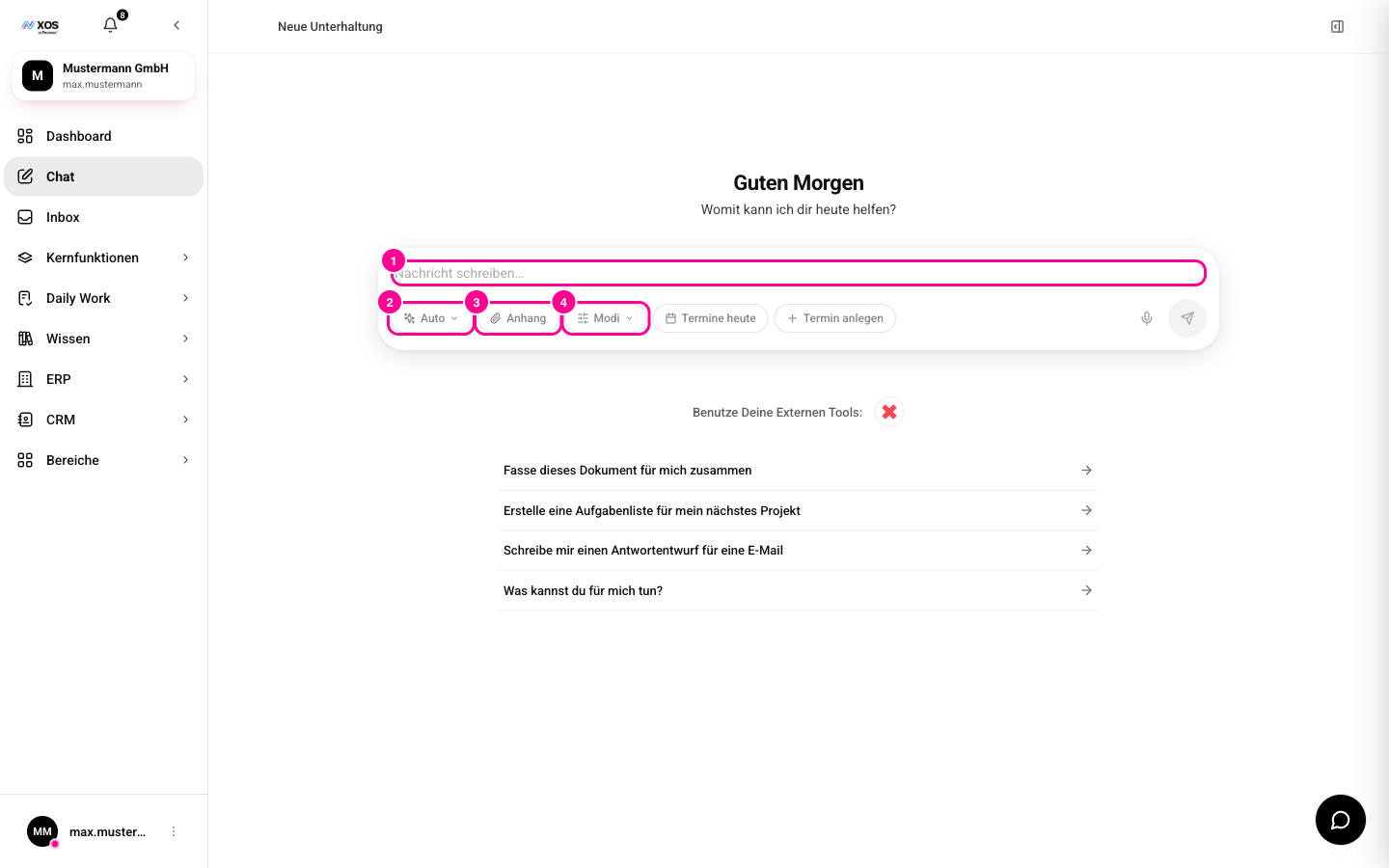
Marker 1 is the input field where you write your request. Every chat session has a Workplace, and everything the agent creates lands there. You don't need to specify a storage location.
What can the three formats do?
All three formats have a clean standard layout in neutral black and gray tones, without a colorful accent color.
- PowerPoint (.pptx): a title slide, then one slide per point with a heading and bullet list. Speaker notes are possible. No elaborate slide design, no tables.
- Word (.docx): a title and any number of sections with heading, text, a real table and/or bullet list. Uses Word styles, so you can keep editing it as usual.
- PDF (.pdf): single column in A4 format with title, sections, an optional table and bullet list. Meant for reports, summaries, quotes and minutes. If you want to edit later, ask for Word instead of PDF.
Where do I find the document?
Generated documents aren't attached in the chat. They're stored in the conversation's Workplace, where you can preview or download them.
- Open Workplaces in the sidebar (under Core features (Kernfunktionen)).
- Open the conversation's Workplace.
- Click the file to preview it or download it. To get all files at once as a ZIP, use the download icon.
With Create new file (Neue Datei erstellen) or Upload file (Datei hochladen), you can also store files there yourself.
How do I have a document analyzed?
It also works the other way around: the agent can read an existing PDF, Word or PowerPoint file. Upload it to the Workplace with Upload file (Datei hochladen) and ask in the chat to summarize it, analyze it or reuse its content.
- For PDF, the text is extracted page by page.
- For Word (.docx), all paragraphs and the content of all tables are captured.
- For PowerPoint (.pptx), the text of every slide is read, including speaker notes.