
Login & initial setup
Log in to XOS
You log in on the login page at /login, depending on how your organization is set up, with Google, Microsoft or with email and password.
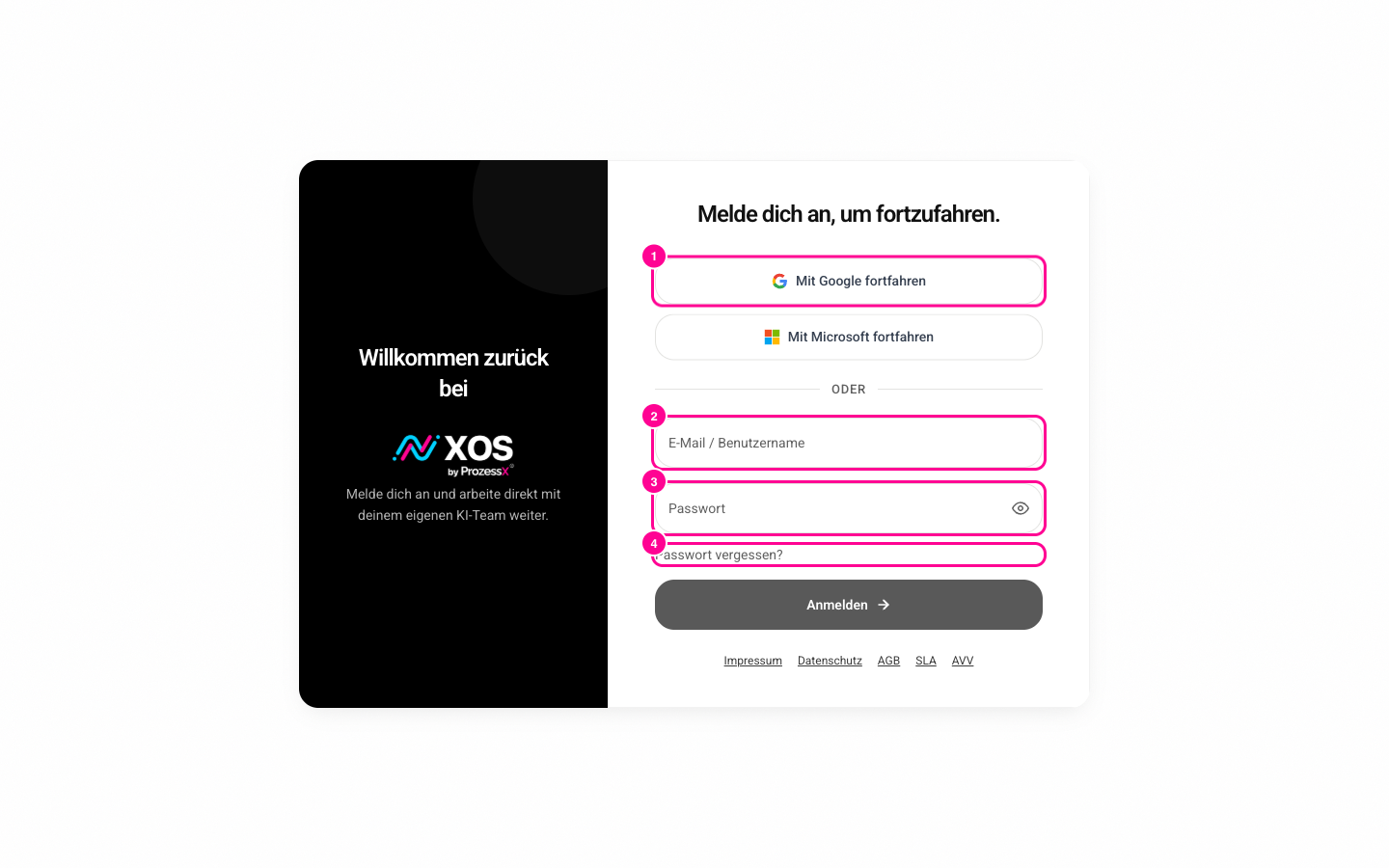
Marker 1 shows the Google login, marker 2 the field for email or user name, marker 3 the password field and marker 4 the link "Forgot password?" („Passwort vergessen?“).
- Open /login. At the top it says "Log in to continue." („Melde dich an, um fortzufahren.“)
- Click Continue with Google (Mit Google fortfahren) or Continue with Microsoft (Mit Microsoft fortfahren). You are taken to the provider and, after confirming, automatically back to XOS.
- Alternatively, enter your address or user name in the Email / user name (E-Mail / Benutzername) field and your password in the Password (Passwort) field. The eye icon shows and hides it.
- Click Log in (Anmelden).
If login does not work
After a failed attempt, XOS shows a message directly below the form. This is what the most common ones mean:
- "Email address or password incorrect." („E-Mail-Adresse oder Passwort falsch.“) Check the spelling, upper and lower case, and accidental spaces.
- "Account not found." („Account nicht gefunden.“) There is no access for this address. Check the address or ask your administrator.
- "Organization not found." („Organisation nicht gefunden.“) XOS could not determine your workspace.
- "Too many attempts. Please wait a moment." („Zu viele Versuche. Bitte kurz warten.“) Login is temporarily blocked.
Forgot your password? Click Forgot password? (Passwort vergessen?) in the form and set a new one via your email address. This only applies to logging in with a password. With Google or Microsoft, you reset the password with the provider.
Initial setup after your first login
As an administrator, a setup window opens at your first login with these steps: Welcome (Willkommen), Profile (Profil), Personal (Persönlich), Company (Firma), Programs (Programme), Tools, Connectors (Connectoren) and Done (Fertig). Next (Weiter) moves forward, Back (Zurück) goes one step back.
Afterwards you land in the workspace, for example in the chat. The setup runs only once. On every later login you go straight to the workspace.
If you belong to several organizations
If you are a member of several organizations, XOS shows the step Choose organization (Organisation wählen) after login, with the note "You belong to several organizations." („Du gehörst zu mehreren Organisationen.“)
- Log in as usual.
- Choose the Workspace you want to work in. Your default organization is marked Default (Standard).
- To go back to the login form, click ← Back (← Zurück).